
How to use Apple intelligence? Explain
Apple Intelligence is a personal AI assistant for iPhone, iPad, and Mac that enhances usability and creativity. It summarizes messages to save time and effort while helping users understand main points quickly. Custom emoji creation adds a unique personal touch to conversations. The tool also aids in organizing tasks, finding information, and providing inspiration, streamlining workflows for faster task completion. Overall, Apple Intelligence transforms devices into smarter companions, simplifying daily activities and enhancing enjoyment.
This comprehensive guide explores the top ten standout features of Apple Intelligence, providing users with an in-depth understanding of each capability.
Apple Intelligence: How to Enable It
Apple Intelligence is available on devices running iOS 18.1, iPadOS 18.1, or macOS Sequoia 15.1 (or later). Follow these steps to enable it:
1. Update Your Device:
Make sure your device is running iOS 18.1, iPadOS 18.1, or macOS Sequoia 15.1 (or later).
- Go to Settings > General > Software Update to check for and install any available updates.
2. Check Language Settings:
Apple Intelligence requires your device and Siri language settings to be compatible.
- Ensure both the device language and Siri language are set to a supported language (e.g., English (U.S.)).
- To adjust, go to Settings > Siri & Search > Language.
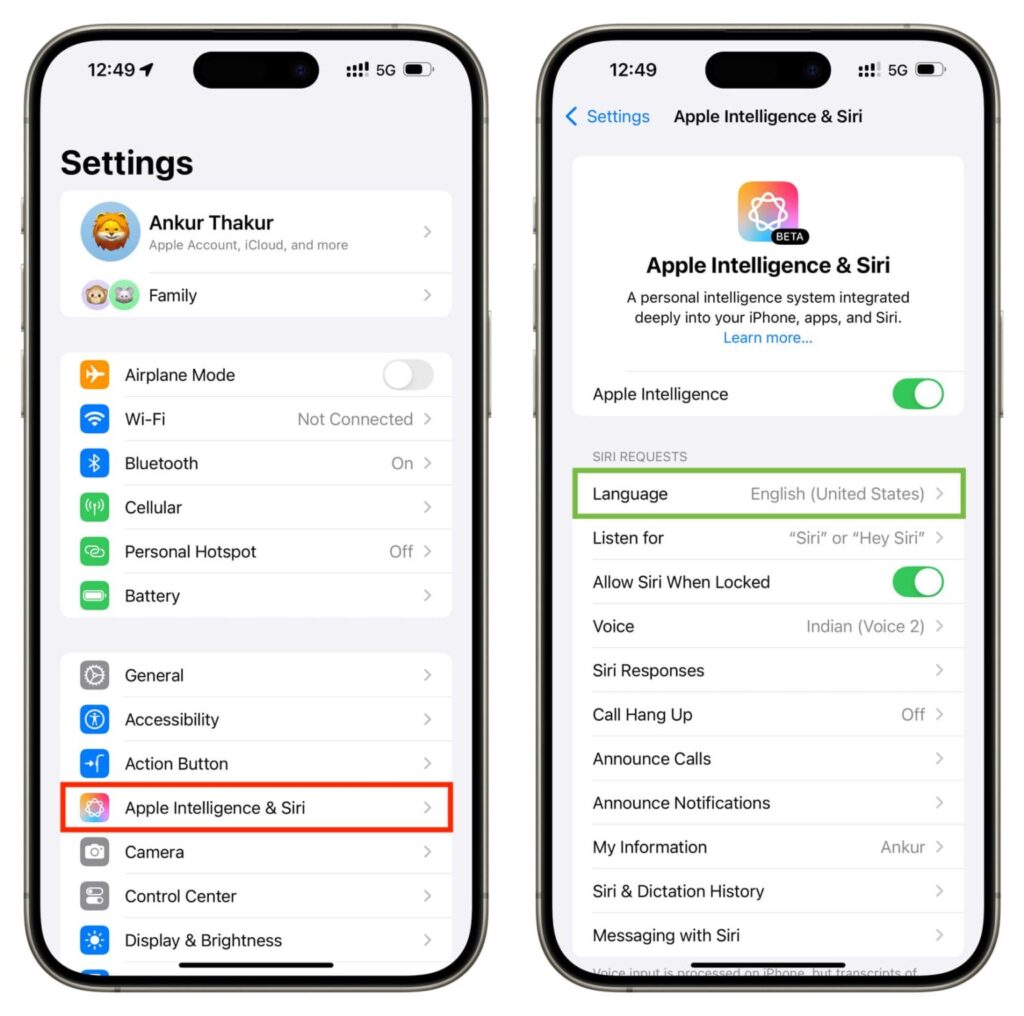
3. Enable Apple Intelligence:
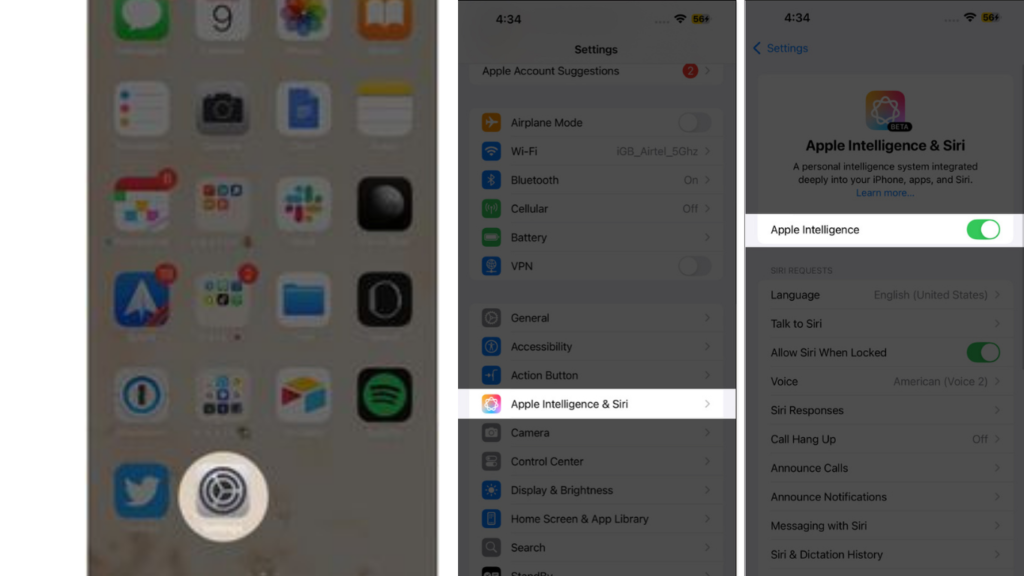
- Open the Settings app.
- Scroll down and tap Apple Intelligence & Siri.
- Tap Turn on Apple Intelligence (or toggle the button next to Apple Intelligence). What you see may vary depending on your iOS version and whether you’ve previously set up Apple Intelligence.
4. Download Apple Intelligence Models:
- Your device will begin downloading the Apple Intelligence models, which are several gigabytes in size. This could take some time, so keep your device connected to Wi-Fi and plugged into power to ensure the download completes.
Once the download finishes, Apple Intelligence will be ready to use, and you can start exploring its various features like smarter notifications, conversation summaries, and more.
Message Summaries
What It Does:
The Summaries feature in Messages gives you a quick overview of each conversation. Below the thread name, you’ll find a brief summary. This helps you catch up on important chats at a glance.
Additionally, it offers Smart Reply suggestions right on your keyboard. These are quick responses you can use without typing, making it easier to reply in a hurry.
How to Use:
To see the summaries, open your Messages app. You’ll instantly notice a short summary under each conversation thread. This way, you won’t miss out on key details.
When you want to reply, tap on a conversation, then click on the text field. You’ll see Smart Reply options pop up on the keyboard. Just tap one to send a quick response.
If you prefer to disable this feature, it’s easy to do. Simply go to Settings > Apps > Messages and toggle the Summarize messages option on or off. Enjoy chatting!
Writing Tools: Grammar Checking, Summarization, and Rewriting
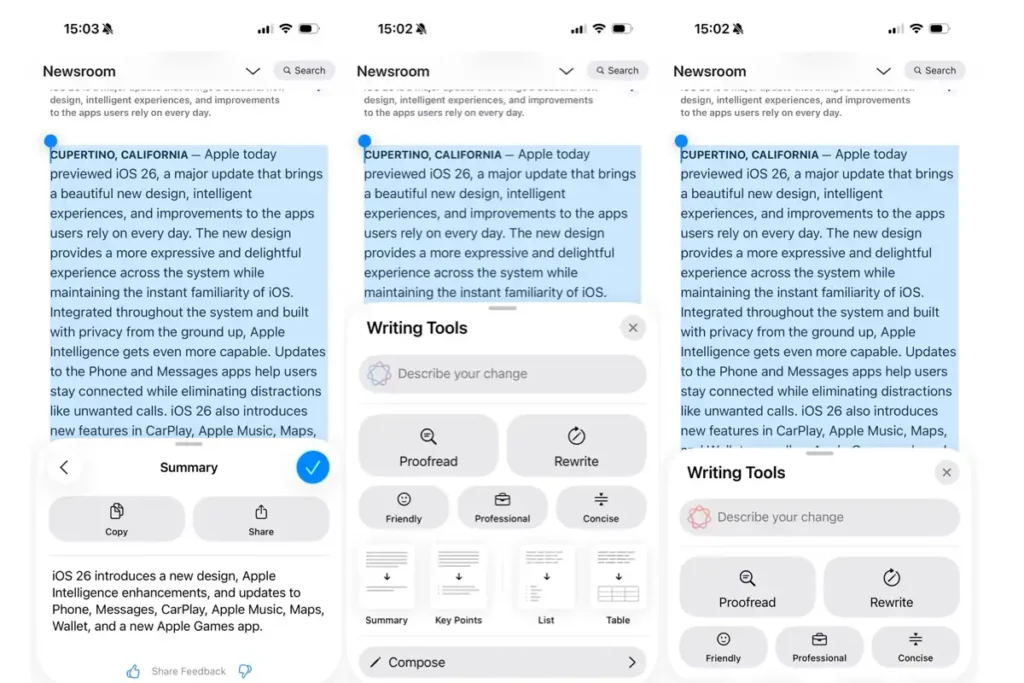
Apple Intelligence includes powerful Writing Tools designed to help you proofread, rewrite, and organize text across various apps on iOS. These tools can assist with grammar checks, text rewrites, summarizations, and organizing text into different formats. Here’s how to use them effectively:
Grammar and Style Checks
What It Does:
- Offers grammar and typo suggestions, as well as style improvements.
How to Use:
- Select Text: Highlight the text you want to check.
- Open Writing Tools: Tap the > arrow or the tool icon, then select Writing Tools.
- Edit Suggestions: Tap Edit to see grammar and typo suggestions. You can review or undo changes by using the Original and Revert options.
- Proofreading: Tap Proofread to correct mistakes in the highlighted text. You’ll see explanations for each change, and you can tap the up or down arrows to read the suggestions.
- Revert Changes: If you prefer the original text, tap Use Original to undo the changes.
Rewriting Text
What It Does:
- Offers the ability to rewrite text in different styles such as informal, professional, or brief.
How to Use:
- Highlight Text: Select the text you want to rewrite.
- Choose Rewrite: Tap the > arrow, select Writing Tools, then choose Rewrite.
- Select Style: Choose the tone you want: Friendly, Professional, or Concise.
- Describe the Change: If you want a specific type of rewrite (e.g., “make this more enthusiastic”), tap the Describe your change box and provide your input.
Summarizing and Organizing Text
What It Does:
- Summarizes text into key points, creates lists, or organizes content into tables.
How to Use:
- Highlight Text: Select the passage you want to summarize or organize.
- Choose Writing Tools: Tap the > arrow, then select Writing Tools.
- Summarize: You can choose options like Summarize, Key Points, List, or Table to condense the information in different formats.
- Replace or Share: Once the summary or organized content is created, you can replace the original text with it, or Copy/Share the result.
How to use Apple Intelligence with Siri
Siri has often been seen as falling behind other virtual assistants, but that’s changed with the launch of Apple Intelligence. This upgrade makes Siri smarter and more aware of context, leading to a smoother and more natural interaction.
Using Siri with Apple Intelligence
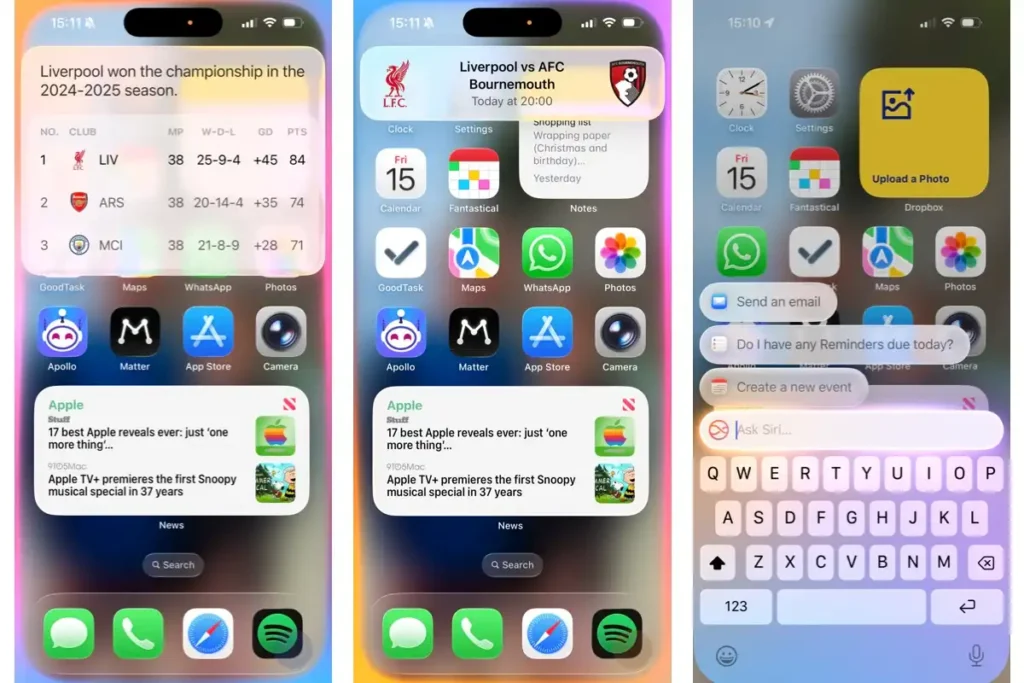
One exciting feature is “Type to Siri.” Now, you can type your requests instead of speaking them.
How to Use: Just double-tap the bottom of your screen, and a keyboard will pop up. Type your question, and Siri will reply.
Turning It Off: If you prefer talking, you can easily turn it off. Go to Settings > Apple Intelligence & Siri > Talk & Type to Siri, and toggle off Type to Siri.
Another great improvement is Siri’s ability to hold a conversation. You can ask follow-up questions without repeating yourself.
How to Use:
For example, you could start with, “Who won the Premier League last season?” After getting the answer, you could ask, “When are they playing next?” Siri will remember your original question and give you relevant details.
Apple’s aim with Apple Intelligence is to make Siri more capable of handling complex tasks and understanding your routines better. With time, Siri will be even more personalized and helpful.
Phone Call and Audio Summaries
What It Does
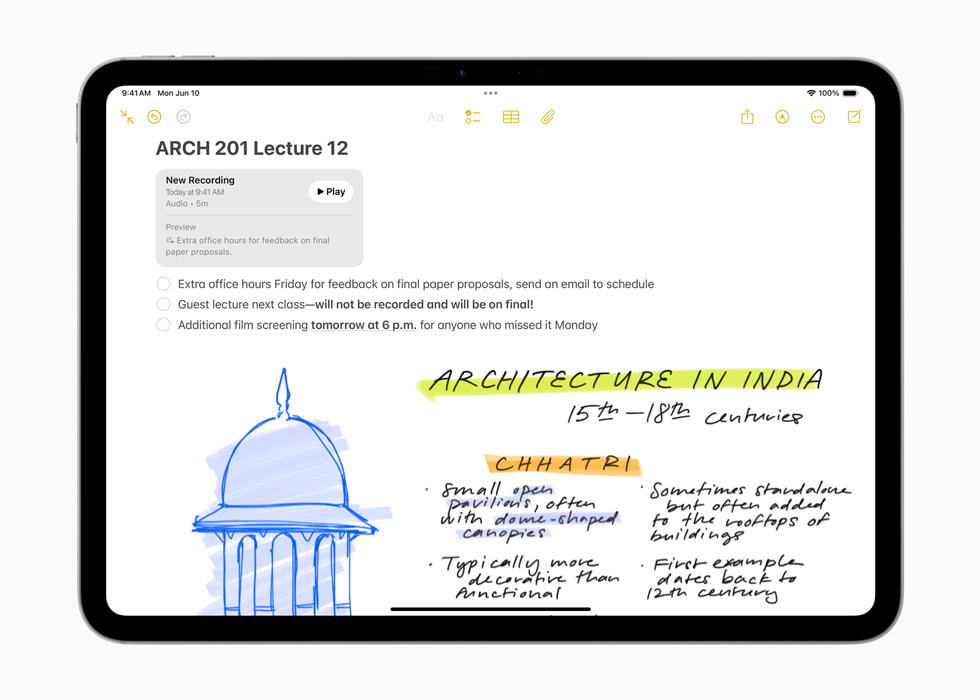
This feature helps you by transcribing and summarizing your recorded phone calls or voice memos saved in the Notes app. It captures the main points, making it easier to remember and share important information.
How to Use
First, record your phone call using the Phone app. Once you finish, the recording will automatically save in your Notes under a section called “Call Recordings.”
To see the summary, open the Notes app, find the recorded call, and tap on the “Summary” button. This action will show you a condensed version of what was said during the call.
If you want to share this summary with someone else, simply use the icons at the bottom to copy or share it through your preferred method.
You can also get summaries for other audio notes, like lecture recordings. Just open the note, tap on “Summary,” and choose to copy or share it as needed. This way, you can keep track of important points from various audio recordings easily!

Apple Intelligence in Photos
Apple’s Photos app has received a major makeover, becoming smarter and easier to use thanks to Apple Intelligence. Let’s explore the new features that can help you get the most out of your photos.
Smart Search:
Smart Search makes it a breeze to find specific pictures. Instead of just searching for simple terms like “dog” or “vacation,” you can ask for detailed scenes, like “me at the beach with friends.”
To use this feature, open Photos, tap on Search, and type your description. Then, just select the best match from the results.
Creating a Memory Movie:
Creating a Memory Movie is another exciting addition. This lets you compile your favorite moments into a movie that includes animations and music.
To create one, go to Photos, choose Memories, tap Create, and give your movie a title. Apple will take care of the rest!
The Clean Up Tool:
The Clean Up Tool is perfect for editing out unwanted things from your photos. You can easily remove distractions like extra people or random objects with a simple tap.
Just open your photo, hit Edit, select Clean Up, and brush over what you want to remove. Then tap Done!
Summaries in Notifications and Focus Mode
Apple’s latest update brings smart tools designed to help you manage the overwhelming number of notifications. This makes it easier to stay focused and in control.
Summarized Notifications
Now, Apple’s AI condenses multiple alerts into easy summaries. Instead of sifting through countless messages, you receive grouped highlights. For example, you might see:
- Group Chat (15 messages): “Discussion about weekend plans. Sarah suggests Saturday brunch.”
- News Alerts (8 notifications): “Breaking: Major policy announcement. Market reaction positive.”
- Shopping Updates (6 notifications): “Your package is arriving today by 5 PM.”
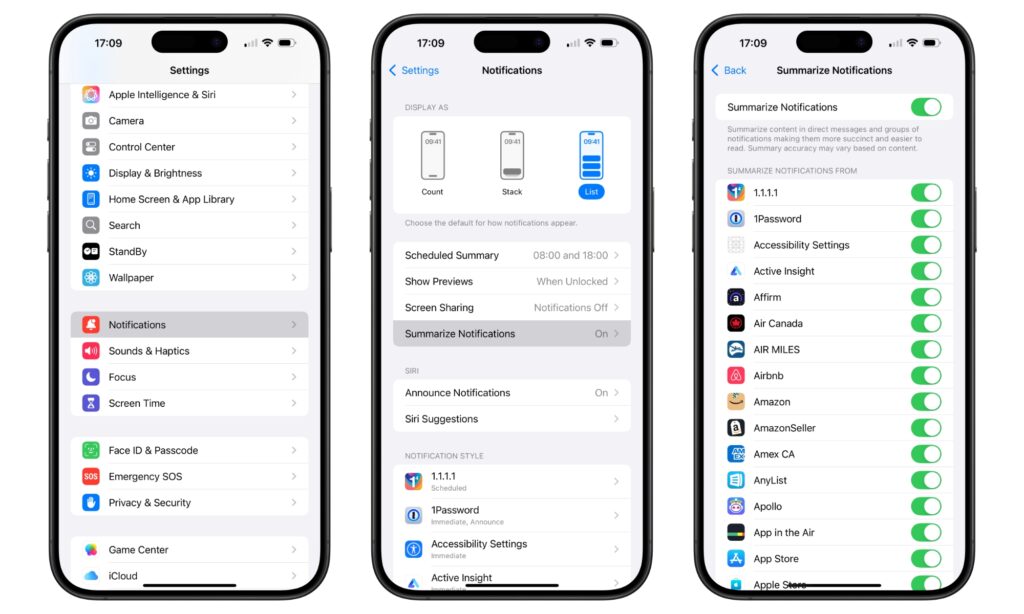
To enable this, go to Settings > Notifications and toggle on Summaries.
Focus Mode: “Fewer Notifications”
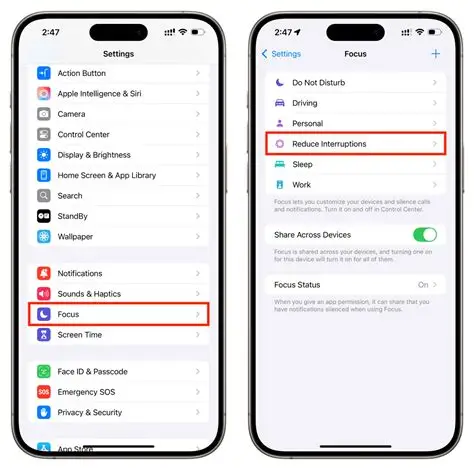
When you need to concentrate, use the Fewer Notifications mode. This filters out distractions and only shows the most important alerts. Set it up by going to Settings > Focus, then select Fewer Notifications. You can choose which apps or contacts can interrupt.
Reduce Interruptions Focus Mode
This mode silently sorts notifications, letting only the urgent ones through. It automatically learns from your habits so it improves over time. Head to Settings > Focus, tap the +, and select Reduce Interruptions to customize what gets through.
With these features, Apple helps you regain control over your notifications, so you can focus on what really matters.
Create Custom Emoji
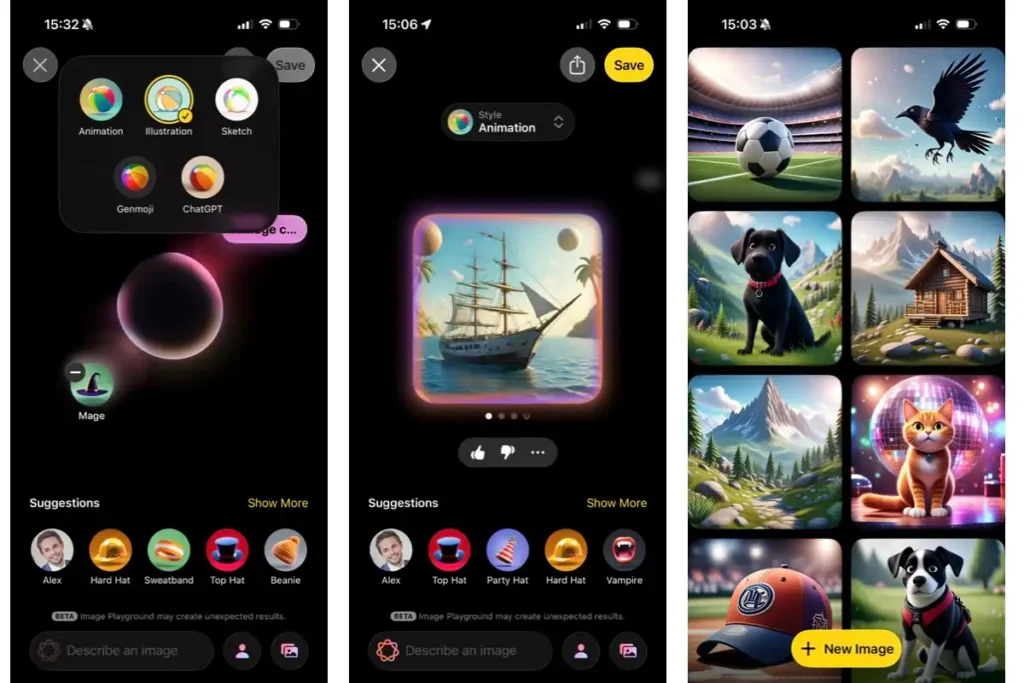
Genmoji is an exciting new feature that allows you to create custom emojis using descriptions or photos. This means you can add a personal touch to your messages, making them more fun and unique. Want a dinosaur wearing sunglasses? Or maybe a friend in a party hat? Genmoji can bring those ideas to life!
What You Can Do:
Create Custom Emojis: Just describe what you want — like “happy face with sunglasses and a party hat” — and Genmoji will make it for you.
Use Photos: Turn a picture of a loved one into a personalized emoji, adding cool accessories or themes.
Customize: You can add fun props like hats or sunglasses. Change the background to a beach or space, and adjust facial expressions to match your mood.

How to Use It:
- Open the emoji keyboard in Messages or any app that supports emoji input.
- Type a description, such as “T-Rex with sunglasses.”
- Browse the options and choose your favorite Genmoji.
- For personalized emojis, upload a photo, describe the scene, like “celebrating with a party hat,” and generate your custom emoji.
When Is It Available?
Genmoji will be included in iOS 18.2 and should launch later this year. You can enjoy it on devices like the iPhone 15 Pro, iPhone 16, and compatible iPads and Macs.
Audio Transcription with Apple Intelligence
Now, you can easily convert your audio recordings into text right within the Notes app. To get started, open a note that has a recording. If you don’t have one yet, you can add a Voice Memo by tapping Share and selecting Notes.
Once you have your recording, tap on it and choose “Summary” to generate a transcription. This handy feature even works with call recordings stored in the Call Recordings folder.
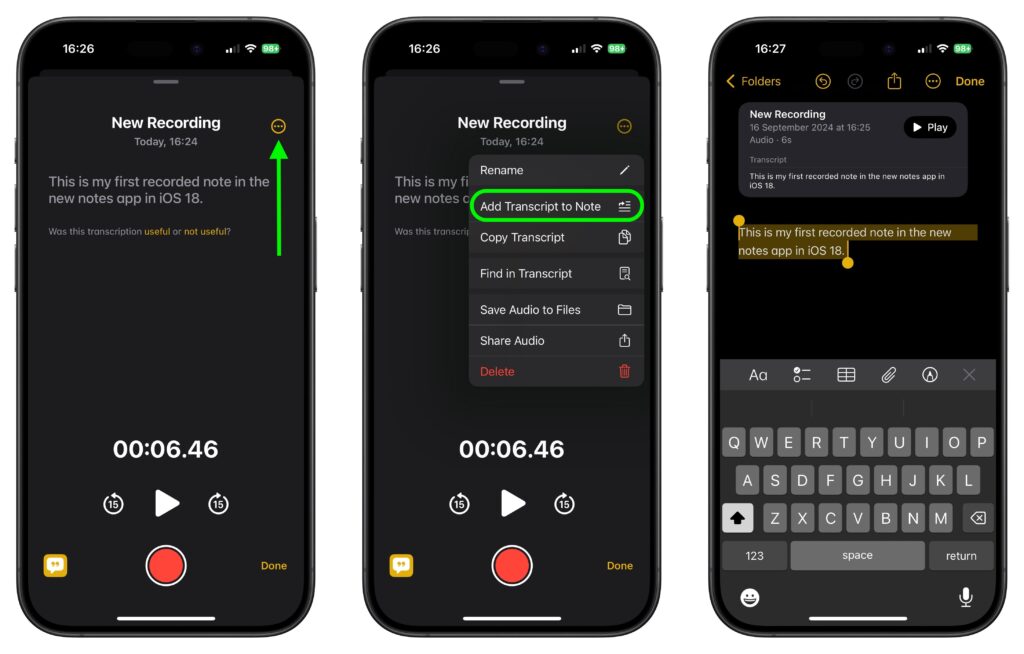
Image Wand: Transform Sketches into Polished Images
Say goodbye to rough doodles! With ImageWand, your sketches can become professional-quality images. Simply open the Notes app and draw with your Apple Pencil or finger.
To enhance your sketch, circle it and tap on ImageWand. The app analyzes your doodle, turning it into a clean, polished image.
Creative Use Cases
You can use this feature for various purposes. Convert brainstorming sessions into clear diagrams, add visuals to study notes, or turn simple ideas into detailed illustrations.
Empty Space Generation
If you circle a blank space, ImageWand will intelligently fill it with relevant images. For instance, in a note about a camping trip, it might add a tent or a campfire, perfectly matching your content. With these new features,
Conclusion
Apple Intelligence is not just an AI assistant; it helps simplify your life on all your Apple devices. It summarizes messages, saving you time and ensuring you catch important details. Whether for work or personal tasks, it boosts your productivity and creativity. Its easy-to-use design makes it accessible for everyone. Try Apple Intelligence and discover how it can improve your daily routines!