
Fix 404 Errors in Google Search Console: AI SEO Guide
Broken links are quietly stealing your traffic right now. This guide shows how to find and fix 404 errors in Google Search Console and why they hurt your rankings, user trust, and crawl budget. You will learn a simple, step-by-step process to spot errors, create smart redirects, repair internal links, and update sitemaps. With AI tips to group issues, set priorities, and write redirect rules faster, you’ll spend less time on repairs and more time growing your site.
What Is a 404 Error?
A 404-error means “page not found.” It is an HTTP status code your browser gets when a page does not exist at the web address you tried. This often happens when a link is broken, the URL is typed wrong, or the page was moved or deleted.
It can also come from outdated bookmarks, caching issues, or a change to the domain or DNS. If you see a 404, check the spelling of the address, then refresh the page. You can also clear your cache, update your bookmark, or use the site’s search or homepage to find the page.
What Causes 404 Errors in Google Search Console?
404 errors in Google Search Console happen when Google crawls a page that no longer exists or returns “Not Found.”Many come from broken internal links after you delete or rename a page without a 301 redirect, or change a trailing slash or letter case.Other sites can link to the wrong address; a small typo, extra folder, or missing file type can create lots of 404s.
Old URLs in your XML sitemap, RSS feed, menus, breadcrumbs, or schema can make Google revisit dead pages.Old canonical tags, language tags, and pagination links can also point to pages that are gone.Site moves cause 404s if you change folders, domains, http/https, or www/non‑www and don’t redirect each old path.
Dynamic URLs with filters, tracking codes, or sort options can break when rules change, categories are removed, or faceted pages are blocked.Images, PDFs, JS/CSS files, videos, and AMP or mobile versions tied to removed pages can also return 404.Some CMSs auto‑create tag, author, or search pages; if you unpublish them, Google may still crawl those URLs if they were linked, cached, or shared.
Should I Fix URL Not Found (404) Errors?
Short answer: No. You don’t need to fix every 404 on your site. Google says 404s are a normal part of the web as you add, move, or remove pages.
404s do not hurt your rankings by themselves. Google expects them and handles them.
But you should still fix 404 errors for other important reasons.
- But you should still fix important 404s for people. Broken links frustrate users and can lower trust.
- Redirect any moved or renamed pages with a 301 to the new URL. Don’t redirect all 404s to the homepage.
- Fix broken internal links and update key backlinks if you can. Make a helpful custom 404 page with links to top pages and search.
- Use Google Search Console to find frequent 404s. If a page is truly gone, return a 410 status.
How to Find 404 Errors in Google Search Console
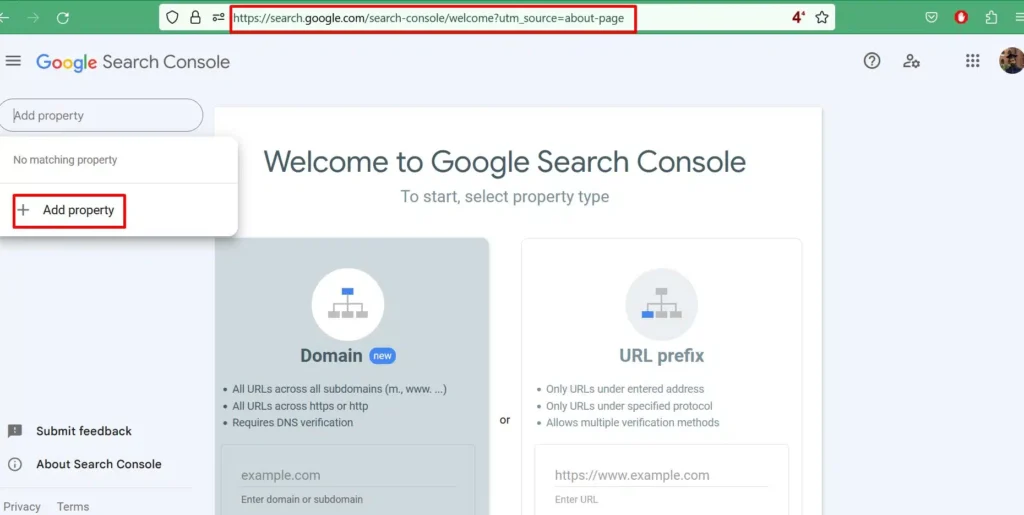
- Sign in to Google Search Console and pick your site property.
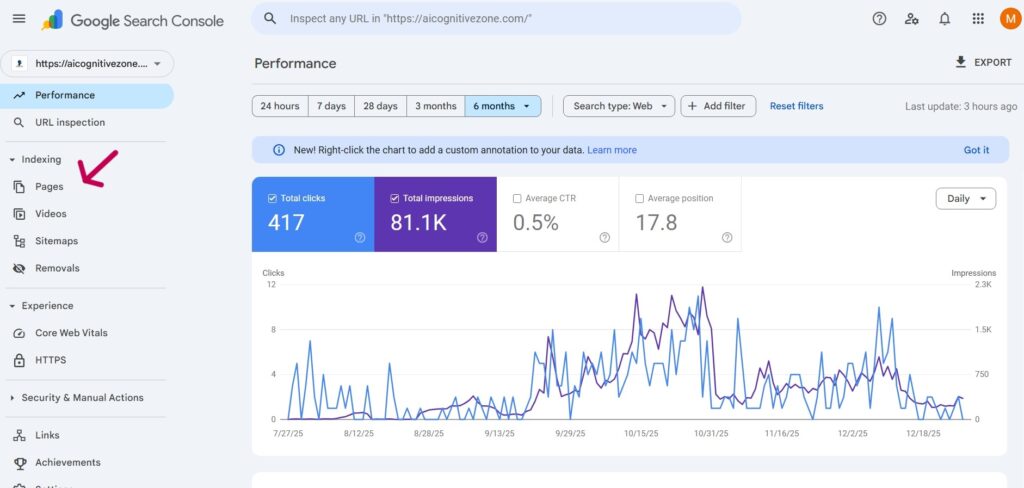
- In the left menu, open Indexing, then click Pages.
- Look for the Not found (404) section. Click it to see all URLs Google tried to crawl but couldn’t find.
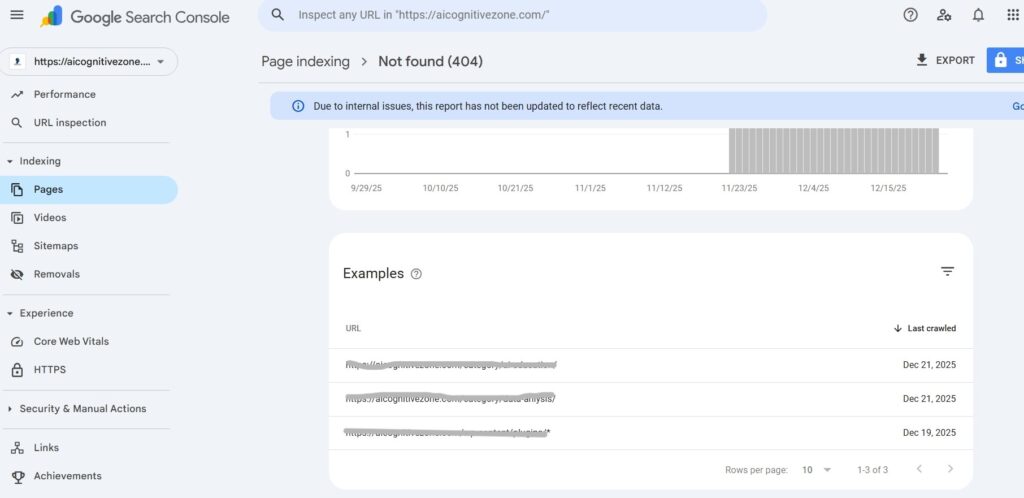
- Use the filters at the top to narrow by URL, last crawled date, or source. Click a URL to see details, the referring page, and when Google found the error.
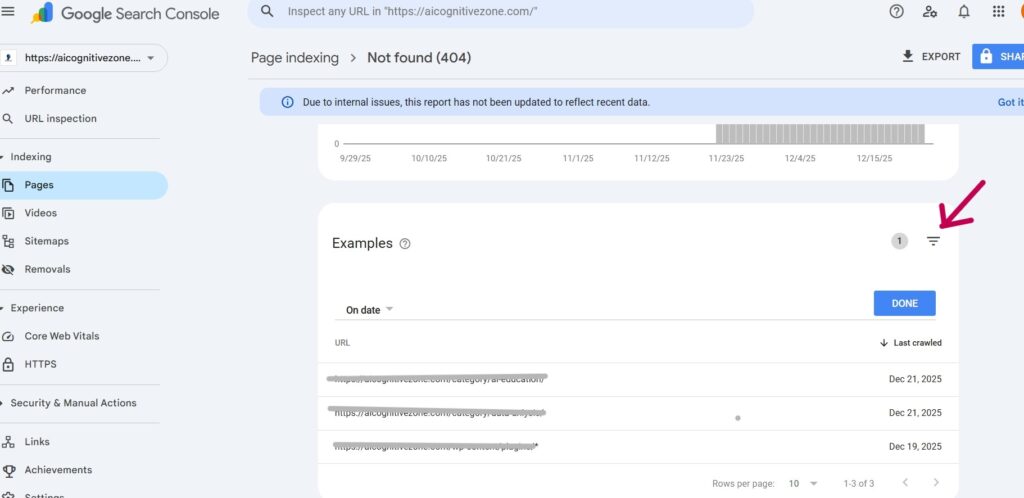
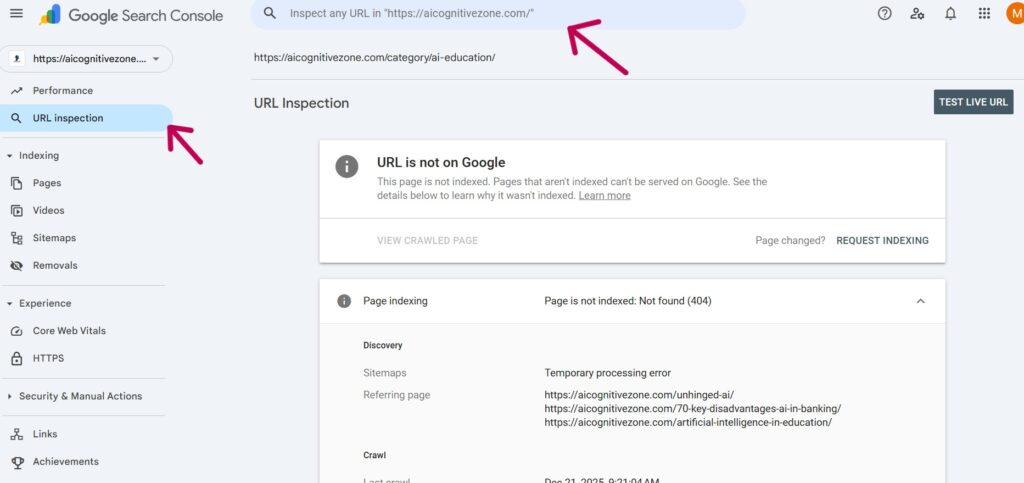
- To check a single URL, use the URL Inspection tool at the top. It shows if the page returns 404 and how Google last saw it.
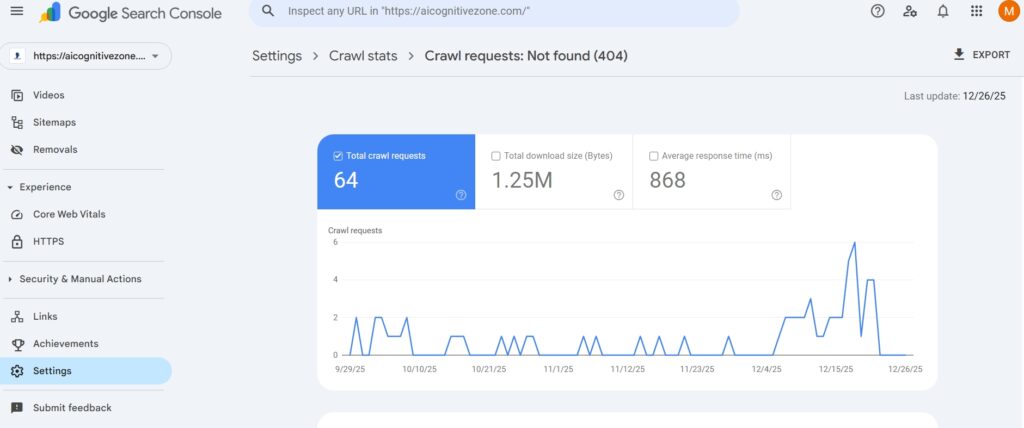
- For crawl-wide stats, go to Settings > Crawl stats. Open the By response > Not found (404) report to see patterns and spikes.
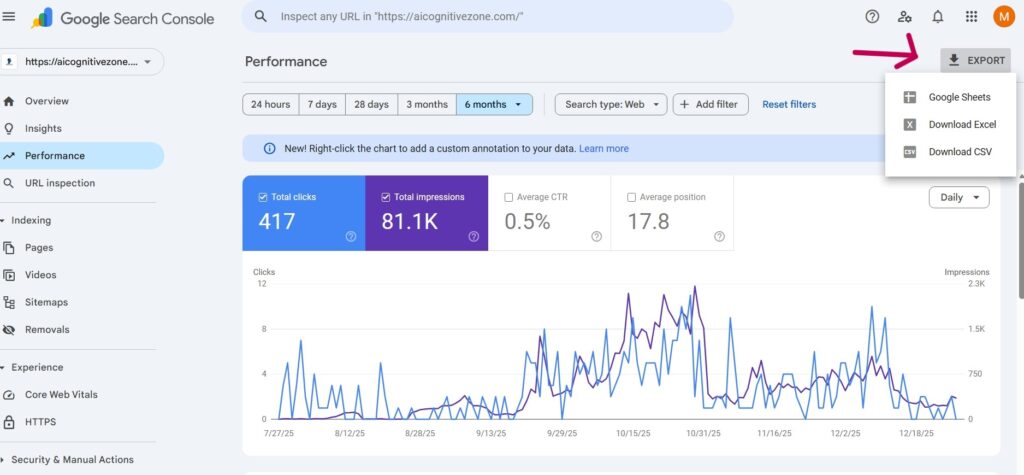
- You can export the 404 list from the Pages report (Export button) to CSV or Google Sheets for easier review and fixes.
How to Fix “URL Not Found (404)” Errors in Google Search Console
Resolving 404 errors on your website requires a structured approach. These errors occur when a page no longer exists or can’t be found, and if left unresolved, they can impact user experience and SEO performance. Follow the steps below to handle them effectively.
Locate All 404 Error URLs
Start by identifying every page that Google has flagged with a URL Not Found (404) status.
To do this in Google Search Console:
- Open your Google Search Console account.
- Navigate to the Page Indexing report.
- Click on the “Not Found (404)” section.
- Export or download the affected URLs so you can review them later.
Identify the Root Cause
Once you have the list, determine why each URL is returning a 404 error. Common reasons include:
- The page was removed permanently.
- The page URL was changed without creating a redirect.
- An incorrect or misspelled link exists within your site content.
Understanding the cause helps you choose the correct fix.
Resolve the Errors
Now take action based on the specific issue:
- Deleted pages:
If the page is no longer needed but still appears in your sitemap, remove it from the sitemap and request Google to re-crawl it.
If the page is important, restore it and submit the updated sitemap for reindexing. - Incorrect internal links:
Fix any broken or mistyped URLs in your website content, then request a re-crawl of the affected pages. - Moved pages without redirects:
Set up proper redirects:- Use a 301 redirect for permanently moved pages.
- Use a 302 redirect for temporary changes.
Enhance User Experience with a Custom 404 Page
Design a helpful and user-friendly custom 404 page. While this doesn’t directly boost rankings, it keeps visitors engaged by guiding them to useful content instead of forcing them to leave your site.
A well-designed 404 page can:
- Reduce bounce rates
- Encourage users to explore other pages
- Improve overall site engagement, which can indirectly support SEO
Monitor Performance Regularly
Continue monitoring your site through Google Search Console to catch new 404 errors early. This is especially important if you frequently update, remove, or restructure website pages.
Regular tracking ensures your site stays clean, user-friendly, and search-engine optimized.
How AI Helps Fix 404 Errors Faster
Fixing 404 errors manually can take hours or even days, especially on large websites. AI-powered SEO tools make this process faster, smarter, and more accurate by automating detection and decision-making.
Automatically Detect Broken URLs
AI SEO tools continuously crawl your website just like search engines do. They instantly identify:
- Broken internal links
- Deleted or moved pages
- URLs returning 404 or 410 status codes
Unlike manual checks, AI can scan thousands of pages in minutes and alert you in real time.
Suggest Smart Redirects Based on Relevance
One of the biggest challenges is choosing the right redirect target. AI solves this by:
- Analyzing page content, keywords, and intent
- Matching broken URLs with the most relevant existing pages
- Preventing poor redirects that confuse users and search engines
This ensures redirects preserve SEO value instead of harming rankings.
Analyze Traffic Impact of 404 Pages
Not all 404 errors are equally harmful. AI tools evaluate:
- Organic traffic loss
- Backlinks pointing to broken pages
- User behavior (bounce rate, exit rate)
This helps you prioritize high-impact pages first, saving time and protecting rankings.
Predict SEO Damage and Recovery
Advanced AI models can:
- Estimate ranking loss caused by 404 errors
- Predict how fast traffic will recover after fixes
- Recommend whether to redirect, restore, or remove pages
This predictive insight helps you make smarter SEO decisions instead of guessing.
Popular AI-Assisted Tools for Fixing 404 Errors
Ahrefs
Uses AI-enhanced site audits to find broken links, lost pages, and backlink issues. It helps prioritize fixes based on SEO value.
Semrush
Combines AI insights with technical SEO audits to detect 404 errors and suggest corrective actions, including redirects.
Screaming Frog (AI Mode)
Advanced crawler that uses AI to analyze URL patterns, identify broken links, and assist with redirect mapping on large sites.
Rank Math AI
WordPress-focused AI tool that automatically detects 404 errors, tracks them, and suggests fixes directly inside the dashboard.
Yoast SEO AI
Helps manage 404 issues by improving internal linking, redirect logic, and crawl efficiency with AI-powered recommendations.