
How to cancel Grammarly subscription?
If you’re among the millions of users relying on Grammarly and are thinking about canceling your subscription, you’re in good company. Many people find their writing needs evolve over time, or they simply want to save a bit of money.
Understanding how to cancel your Grammarly subscription can be really helpful. It’s a straightforward process that can save you both time and money.
In this article, we’ll guide you through each step of the cancellation. We’ll explain what you can expect during the process, so you’re well-prepared.
You won’t have to worry about hidden fees or tricky steps. Just follow our clear instructions, and you’ll be done in no time.
Steps To Cancel Your Subscription
To cancel your Grammarly subscription, it matters where you bought it from. Use the steps below to make sure your subscription won’t renew.
Cancel via Grammarly Website (Desktop/Web Version)
If you want to cancel your Grammarly subscription using the desktop or web version, it’s a straightforward process.
- Open your web browser and log into your Grammarly account.
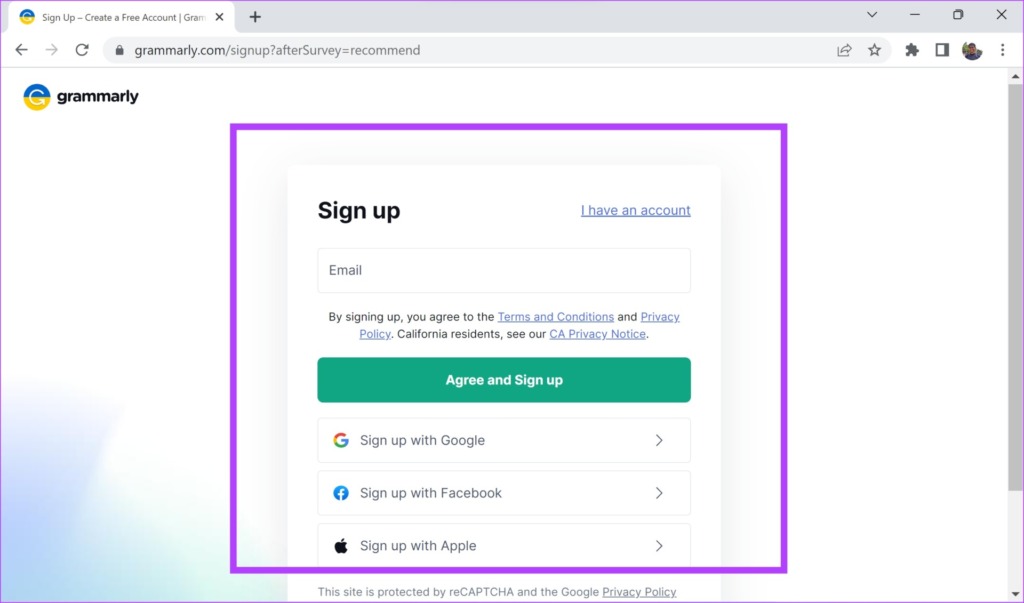
- Click on your profile icon in the top-right corner.
- Select “Account” from the dropdown menu to access settings.
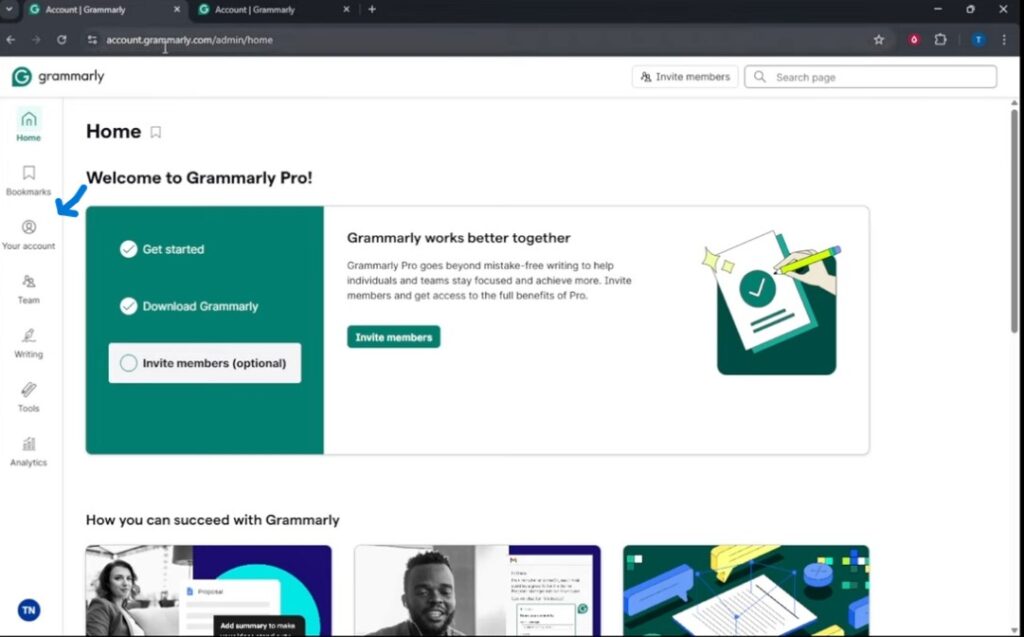
- Find the “Subscription” option and view your current plan.
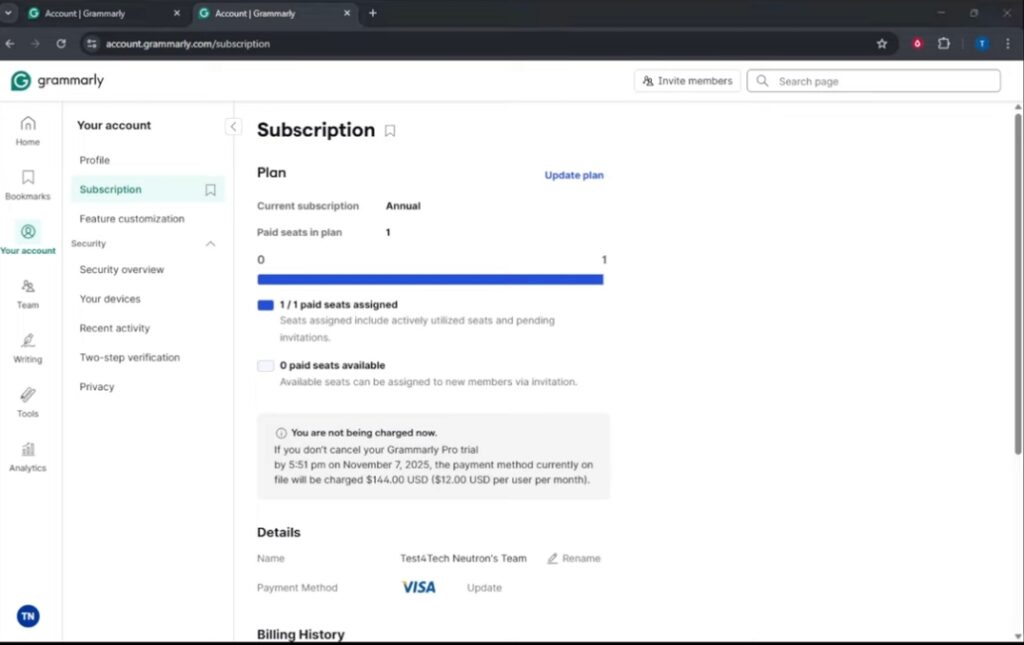
- Click the “Cancel Subscription” button to initiate the process.
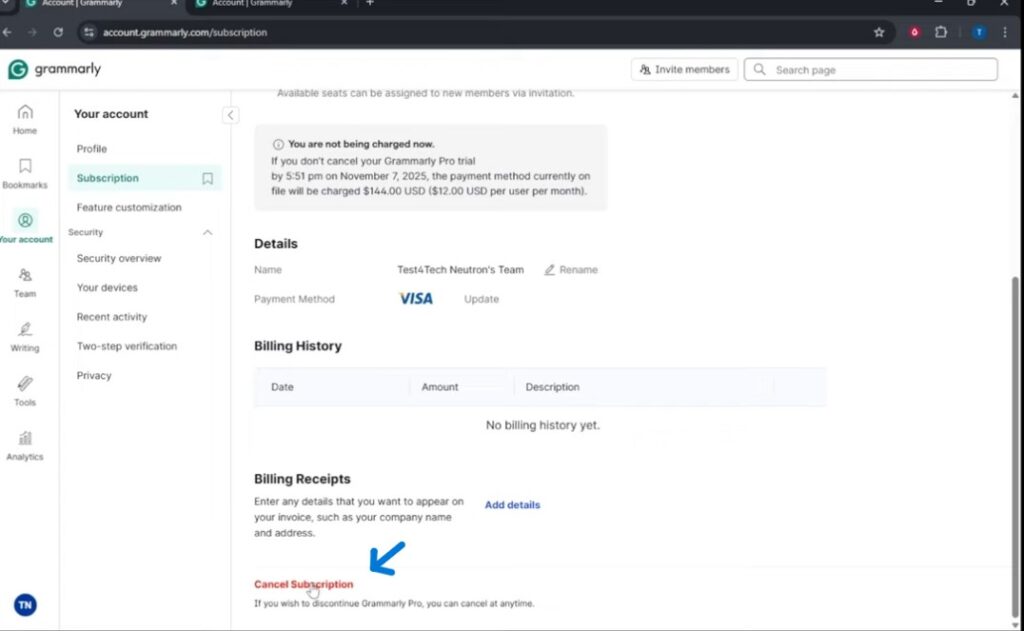
- Follow the prompts to confirm your cancellation.
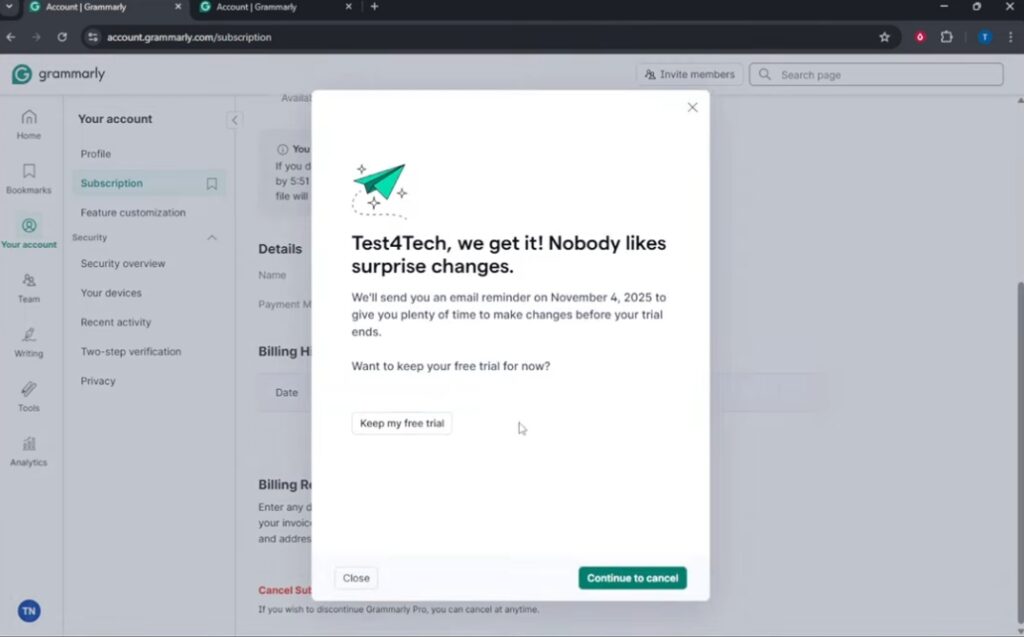
- Check your email for a confirmation of cancellation.

Cancel via Google Play Store (Android)
To cancel your Grammarly subscription through the Google Play Store on your Android device, start by opening the Google Play Store app.
- Next, tap the menu icon, usually found in the top-left corner of the screen.
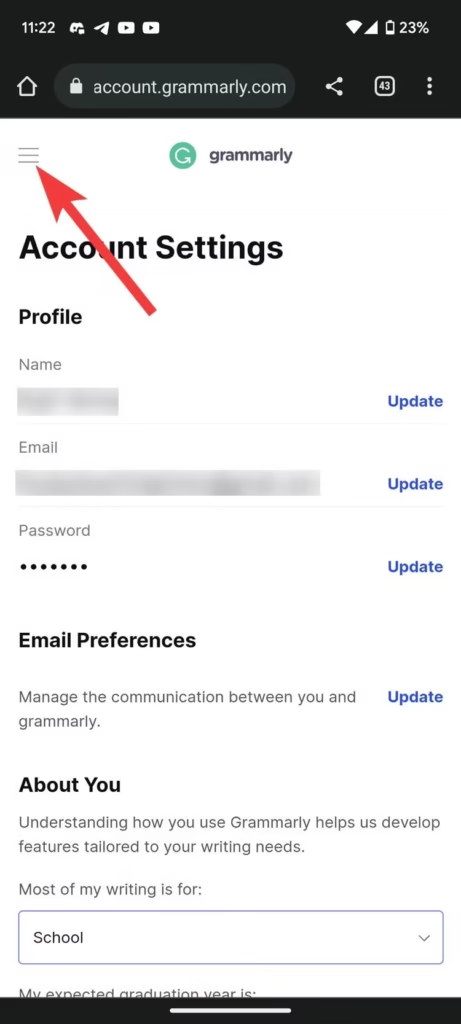
- From the menu, select “Subscriptions” to see a list of all your active subscriptions.
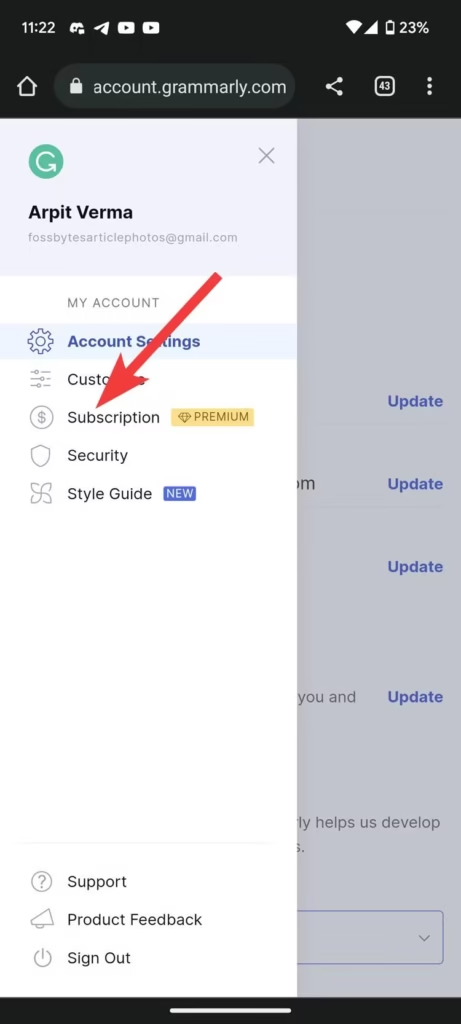
- To proceed with the cancellation, look for the “Cancel Subscription” option and tap on it. Follow any on-screen prompts to confirm your cancellation.
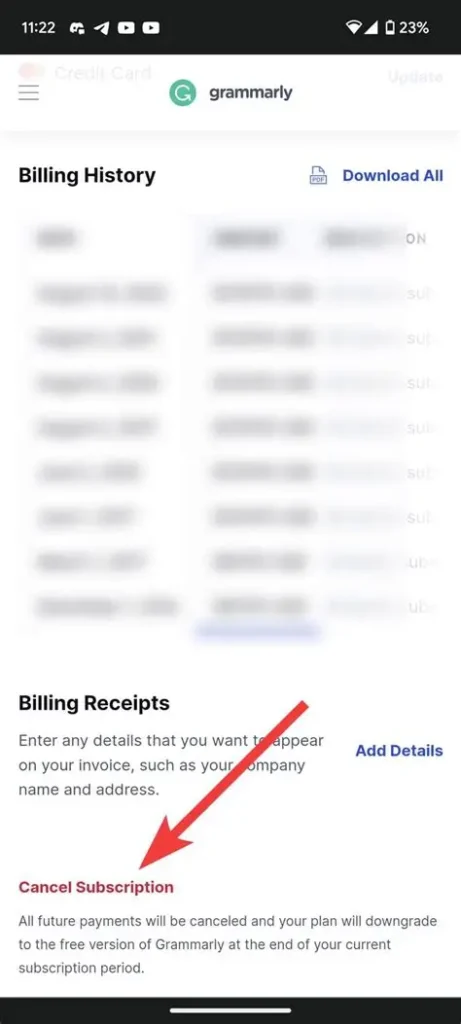
Once you’ve completed these steps, you should receive a confirmation email. Your Grammarly subscription will remain active until the end of the current billing cycle, but you won’t be charged again.
Make sure to double-check your email for the confirmation to ensure your cancellation was successful.
Cancel via Apple App Store (iPhone/iPad)
If you want to cancel your Grammarly subscription through your Apple device, follow these simple steps.
- First, open the Settings app on your iPhone or iPad. Scroll down and tap on your name at the top of the screen. This will take you to your Apple ID settings.
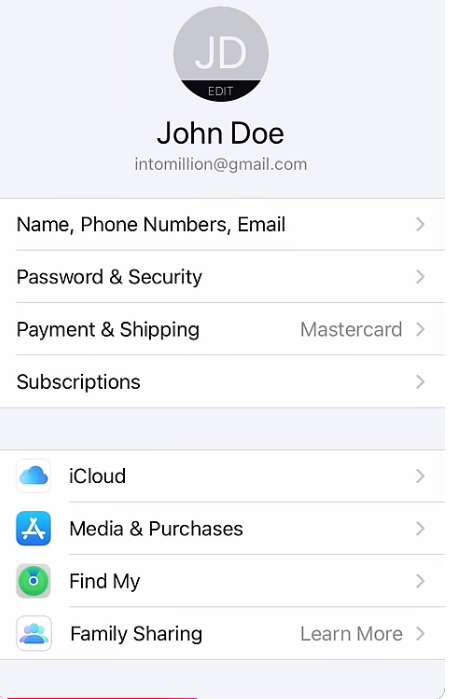
- Next, select Subscriptions. Here, you’ll see a list of all your active subscriptions.
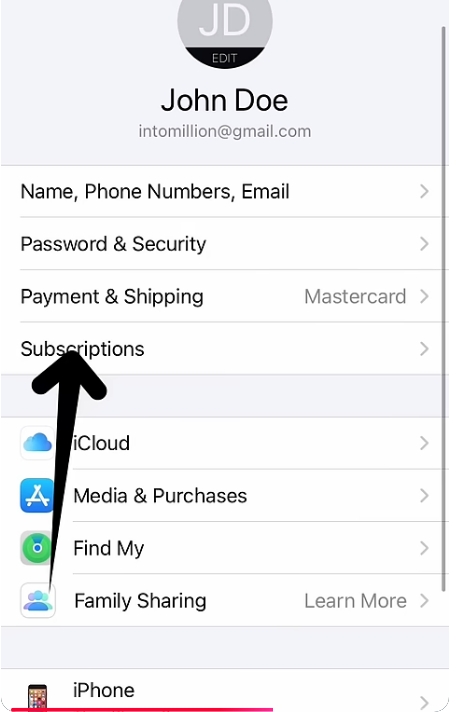
- Once you’re on the Grammarly subscription page, look for the Cancel Subscription option. Tap on it, and you will be prompted to confirm your choice.
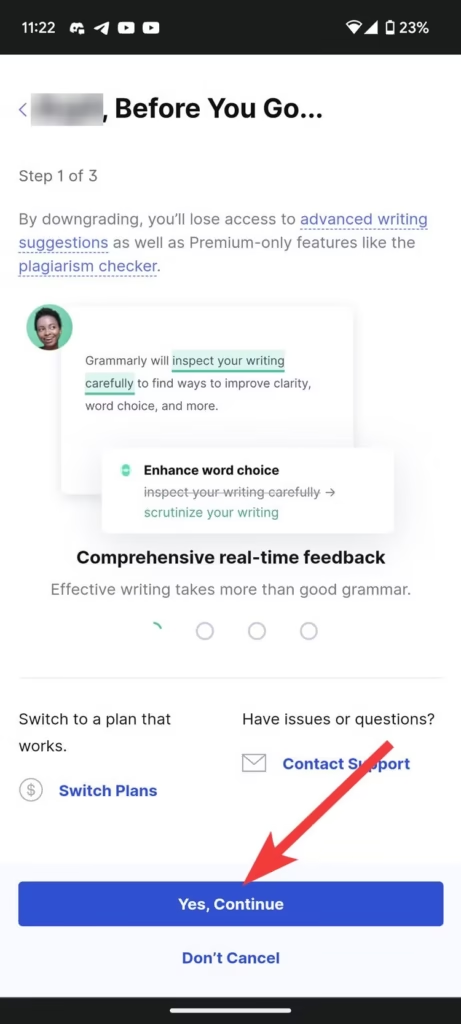
After you confirm, your subscription will be canceled. Keep in mind that you can continue to use Grammarly until the end of your current billing period.
How to turn off Grammarly auto-renewal?
You can disable auto-renewal if you want to stop future charges but don’t want your subscription to be cancelled immediately. You will need to follow different steps depending on where you bought your subscription.
Turn off auto-renewal of Grammarly website
- Sign in to your Grammarly Account.
- Subscribe to account.
- Find the auto-renew feature.
- Click Cancel Subscription to cancel the renewal.
Result:
After the current period, you will not be charged.
Google Play Store: Turn off auto-renewal
- Open Google Play Store.
- Tap on your profile icon.
- Subscribe to Open.
- Select Grammarly.
- Click to cancel your subscription.
You can disable auto-renewal by clicking this button. Your access will last until the end of your billing cycle.
Apple App Store: Turn off auto-renewal
- Open settings.
- Tap your Apple ID to access Subscriptions.
- Select Grammarly.
- Click to cancel your subscription.
Apple will send you a confirmation after the cancellation.
How Can I Cancel My Grammarly Business Subscription?
Grammarly Business is a little different from an individual subscription. account manager can cancel subscriptions.
How to cancel Grammarly Business
- Login to your Grammarly Business admin dashboard.
- Click on Account settings.
- Click on Payment.
- Choose Cancel Subscription.
- Confirm your cancellation.