
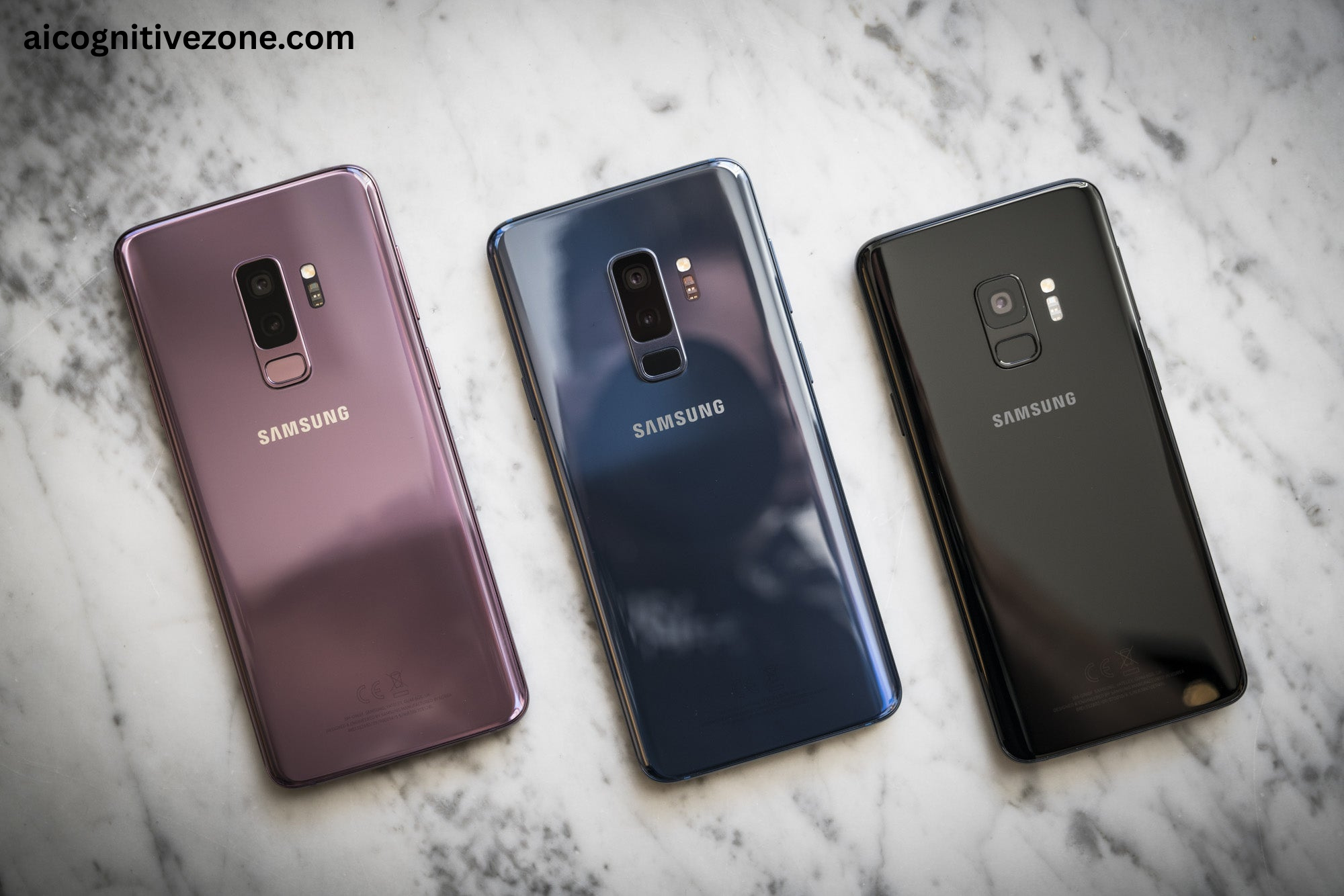
Remove Google Gemini from Samsung Galaxy S9
Did you know that a significant number of Samsung Galaxy S9 users are unknowingly cluttering their devices with numerous apps that they rarely or never use? If you’ve recently noticed that Google Gemini is occupying valuable storage space on your phone, rest assured that you are definitely not alone in this situation. In this article, we will guide you step-by-step through the straightforward process of removing Google Gemini from your device, helping you reclaim precious storage. By the time you finish reading, you will not only have a cleaner and faster phone but also the rewarding feeling of having full control over the apps installed on your device.
Why You Might Want to Remove Google Gemini
Google Gemini is Google’s new AI assistant meant to replace Google Assistant and provide better features. But some users may find it overwhelming or annoying. If you like the old Google Assistant or don’t want a voice assistant, you can remove Google Gemini from your Samsung Galaxy S9.
Important Things to Know Before Removing Gemini
If you’re thinking about removing Gemini from your device, there are a few important points to consider.
- If linked via Google app, uninstalling directly isn’t possible.
- Switch to Google Assistant first for removal.
- Disabling Gemini won’t harm your phone or performance.
- You can re-enable Gemini anytime if you miss it.
- Understand all steps thoroughly before making changes.
Step-by-Step: How to Remove Google Gemini from Samsung Galaxy S9
Step 1: Open Settings
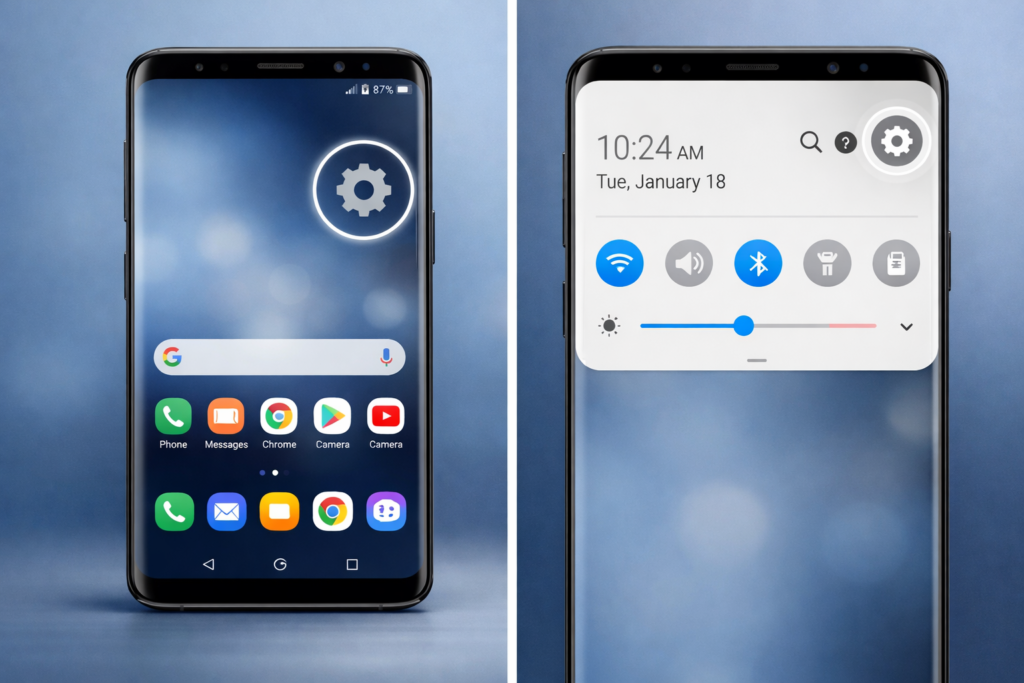
First, turn on your Samsung Galaxy S9 and open Settings. You can find the gear icon in your apps or swipe down from the top of the screen and tap the gear icon in the top right corner.
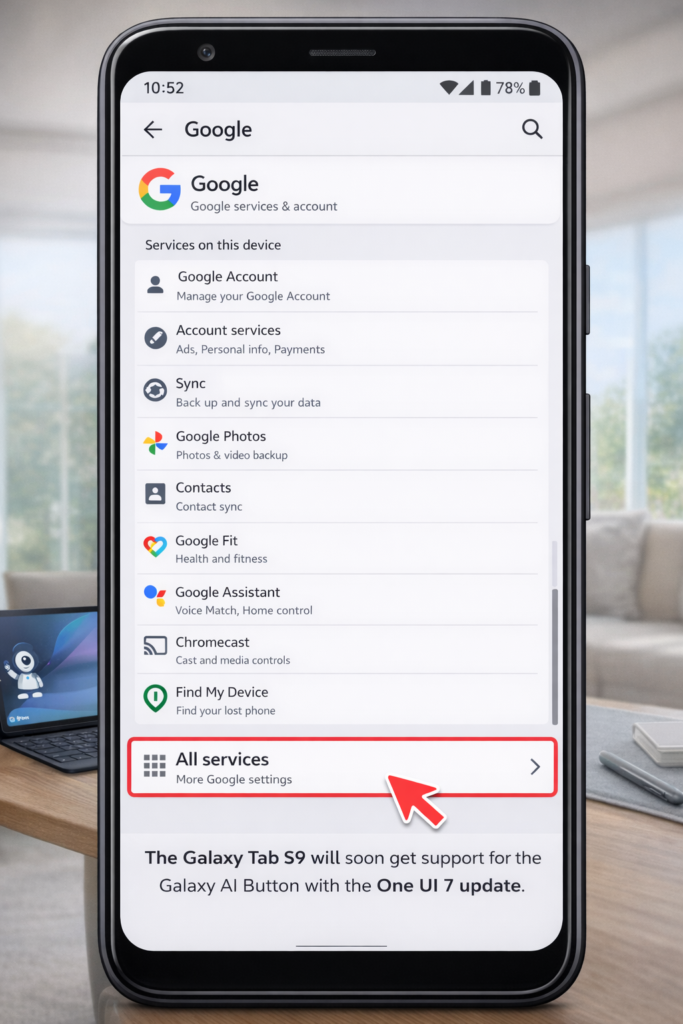
Step 2: Scroll to Google Settings
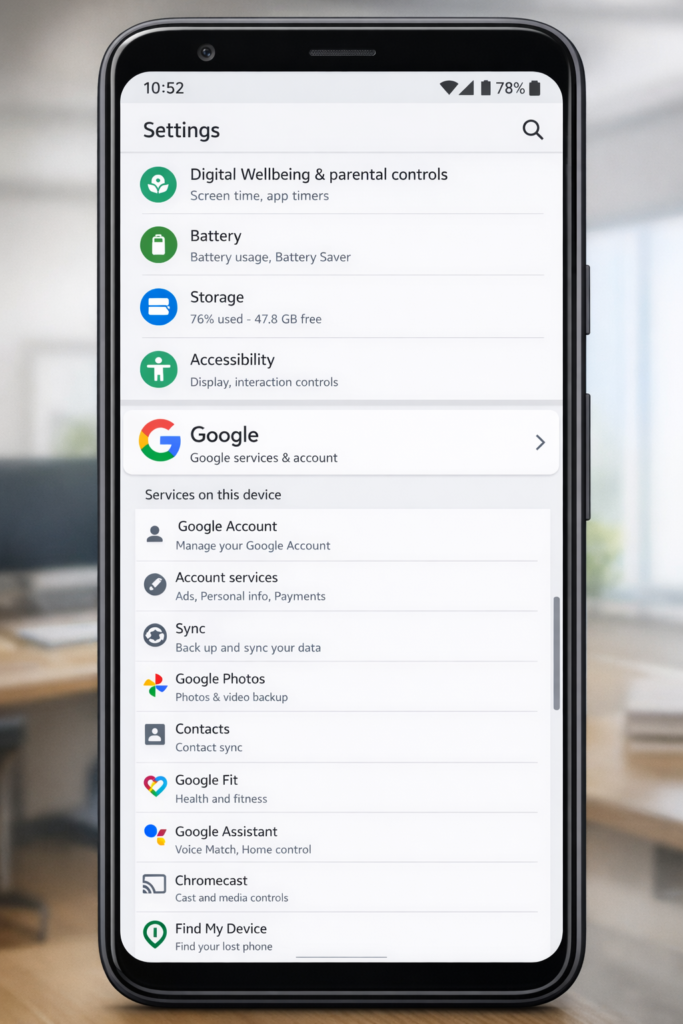
Open the Settings menu and scroll down until you find Google. This section shows all the services linked to your Google account.
Step 3: Access All Services
In the Google area, find a choice labeled All Services or More Settings. Click on it to see all the connected services.
You might also want to check this out: The Samsung Galaxy Tab S9 will soon get support for the Galaxy AI Button with the One UI 7 update.
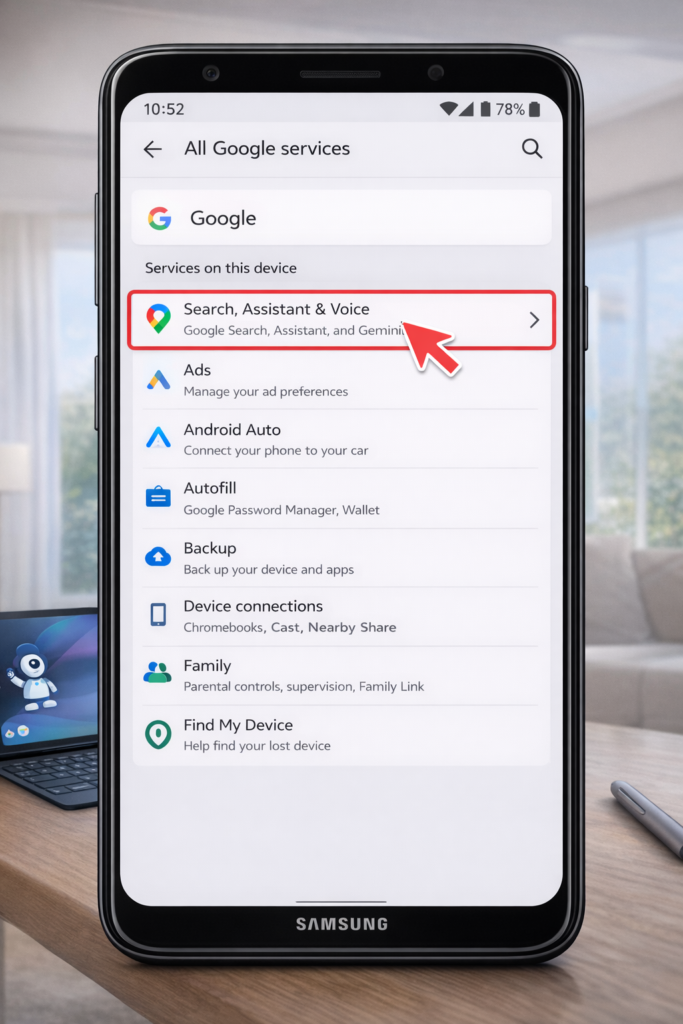
Step 4: Tap on Search, Assistant & Voice
After that, choose the option for Search, Assistant & Voice. This is where you can find both Google Assistant and Google Gemini.
Step 5: Change from Gemini to Google Assistant
To get rid of Google Gemini on your Samsung Galaxy S9, there’s a key step you need to follow. If Gemini is your main assistant right now, you must change it back to Google Assistant first before you can turn off Gemini:
- Go to the Digital Assistant settings in Google.
- Choose Google Assistant as your main assistant instead of Gemini.
This step is really important because you can’t turn off Gemini unless you change which assistant is currently active.
This approach won’t remove Gemini since it’s closely linked with Google Services. But don’t worry, you won’t need to use it anymore. You can still use Google Search, but the voice commands will be turned off. If you update your phone or the Google app, the settings could go back to how they were before, so just be aware of that.
Related article:
How To Disable Gemini on Android? – 2026
Other Ways to Disable Google Gemini
If the previous steps aren’t completely effective, consider these other options:
1. Turn Off Google App (Not Recommended)
You can turn off the Google app, but this may affect features like Google Search and Discover Feed.
2. Utilize a Third-Party Assistant
You can download another assistant app like Amazon Alexa or Bixby and set it as your main one. This way, you don’t need to use Google Gemini.
3. Use ADB Commands (For Advanced Users)
If you know how to use technology and want to remove Google Gemini from your Samsung Galaxy S9, you can use Android Debug Bridge (ADB) on your computer to turn off the Gemini app. First, you need to enable Developer Options and USB debugging on your phone.
What Happens After You Remove Google Gemini?
After you complete the process of uninstalling Google Gemini from your Samsung Galaxy S9:
- Your phone won’t react to “Hey Google” or any similar voice prompts. You could notice a small boost in battery life.
You’ll enjoy a simpler and more organized experience.
Can You Completely Uninstall Google Gemini?
If you’re using a Samsung Galaxy S9, you may find that completely uninstalling Google Gemini isn’t an option available to you. This is because Gemini is integrated into Google services, making it a core part of the system.
However, you do have alternatives. You can choose to disable or deactivate the Gemini feature, which effectively stops it from running in the background. This approach ensures that you can continue using your device without the added functionalities of Gemini.
The good news is that even after disabling it, Google Assistant will continue to work normally. This allows you to retain access to essential services without the interference of Gemini.
In summary, while you can’t fully uninstall Google Gemini on your Galaxy S9, disabling it is a safe and effective method to minimize its presence on your device.
Will Removing Gemini Impact Other Google Services?
- Removing Gemini won’t affect key services like Google Search, Maps, and Gmail.
- Google Search will function normally for quick information retrieval.
- Google Maps will still offer accurate navigation and location services.
- Gmail will operate seamlessly for sending and receiving emails.
- YouTube will remain fully functional for video content enjoyment.
- Google Assistant will continue to assist with tasks and questions.
- Your phone will operate normally, maintaining access to apps and features.
- Overall experience and access to essential services remain unchanged.
CONCLUSION
Removing Google Gemini from your Samsung Galaxy S9 is a straightforward process that anyone can follow. By using the settings menu, you can easily uninstall the app and free up space on your device. Remember to restart your phone after the removal to ensure all changes take effect. If you encounter any issues, don’t hesitate to reach out for help or check online forums for advice. Now that you know how to do it, go ahead and enjoy a clutter-free phone!
FAQs
Is Google Gemini natively installed or fully integrated on a Samsung Galaxy S9?
Google Gemini, in its direct and most recent iteration, is primarily designed for newer Android devices and specific Google applications. The Samsung Galaxy S9, released in 2018, typically features Google Assistant as its primary AI companion. It is highly unlikely that Google Gemini is pre-installed or deeply integrated into the S9’s system software.
What AI assistant is typically found on a Samsung Galaxy S9?
The Samsung Galaxy S9 primarily utilizes Google Assistant for voice commands and AI-powered tasks, alongside Samsung’s own Bixby assistant.
If I’m seeing “Gemini” references, what might I be interacting with on my S9?
If you are encountering references to “Gemini” on your S9, it’s most probable that you are interacting with a Google application (such as the Google app, Google Chrome, or Gboard) that has integrated elements or features powered by Gemini’s underlying AI models, rather than the standalone Gemini app or full Gemini integration.
Can I uninstall the Google app entirely from my Galaxy S9?
The core Google app is typically a system application on Samsung Galaxy devices and cannot be fully uninstalled without rooting the device, which is not recommended due to security risks and warranty voidance. However, you can disable it.
Will disabling Google apps or services affect other functionalities on my S9?
Disabling the Google app or Google Assistant may impact features that rely on them, such as Google search functionality, voice commands, Google Maps integration, or certain smart home controls. Basic phone functions will remain unaffected.
What are the implications of trying to remove system-level applications or AI features?
Attempting to remove or deeply modify system-level applications without proper knowledge can lead to system instability, security vulnerabilities, loss of functionality, and may void your device’s warranty. It is generally recommended to use the built-in disable options rather than attempting a full uninstallation of core system apps.