How to cancel ChatGPT plus subscription?
Many people sign up for subscription services without fully understanding what they entail. If you’re one of the many who tried ChatGPT Plus but found it wasn’t the right fit, you’re not alone. Knowing how to cancel your subscription can feel confusing, but it’s crucial to have control over your monthly expenses. In this article, we’ll guide you step-by-step on how to cancel your ChatGPT Plus subscription, ensuring you can make informed decisions about your online tools.
How Cancellation Works: An Overview
Cancellation allows individuals to reverse unwanted services or orders, requiring notification to the company. Businesses usually have specific cancellation policies, which may involve forms or emails. Timing is crucial, as late cancellations can incur fees. It’s important to review terms to avoid unexpected charges. For services like ChatGPT, cancellation typically stops subscriptions through account settings, although access may continue until the billing cycle ends. Refund policies vary; some companies provide full refunds for early cancellations, while others do not refund at all. Understanding the rules and steps is vital for a smooth cancellation process.
Canceling ChatGPT Plus on desktop
If you decide to cancel your ChatGPT Plus subscription on desktop, you’ll find the process straightforward. By choosing to end your subscription, you’ll no longer have access to the premium features that come with ChatGPT Plus, such as quicker response times and priority access during busy hours. This means you’ll be using the free version of ChatGPT, which still offers helpful responses but may have some limitations compared to the Plus service. Overall, it’s a simple choice if you’re looking to switch back to the free plan.
Steps:
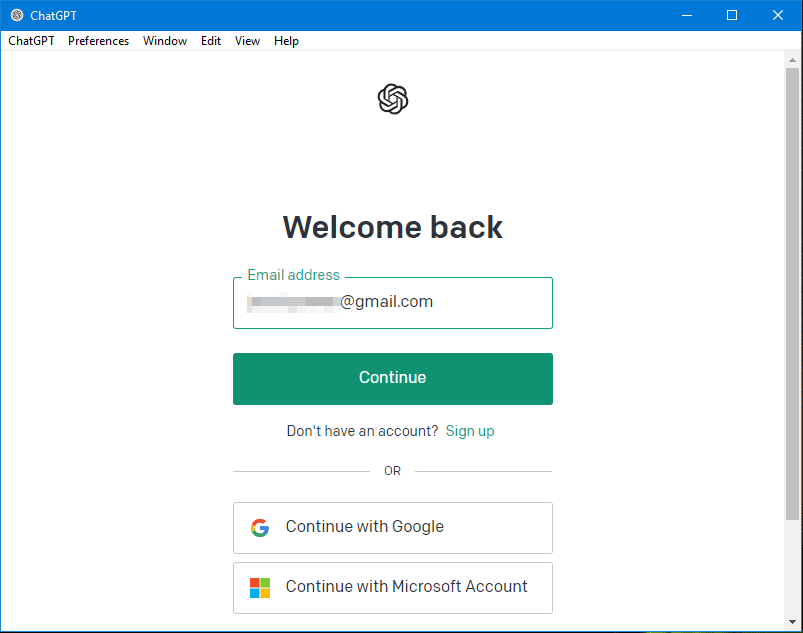
- First, open your web browser and go to the ChatGPT website. Log in to your account using your username and password.
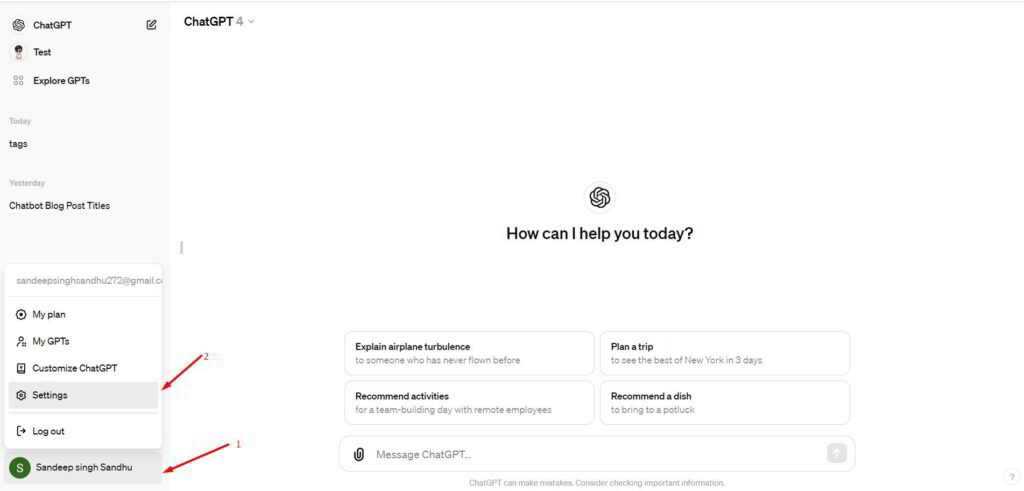
- Once you’re logged in, look for your account settings. This is usually found in the top right corner of the screen, often under your profile picture or name. Click on it to access the settings menu.
- In the settings, find the “Subscription” section. Here, you’ll see details about your current plan. Look for the option to cancel your subscription.
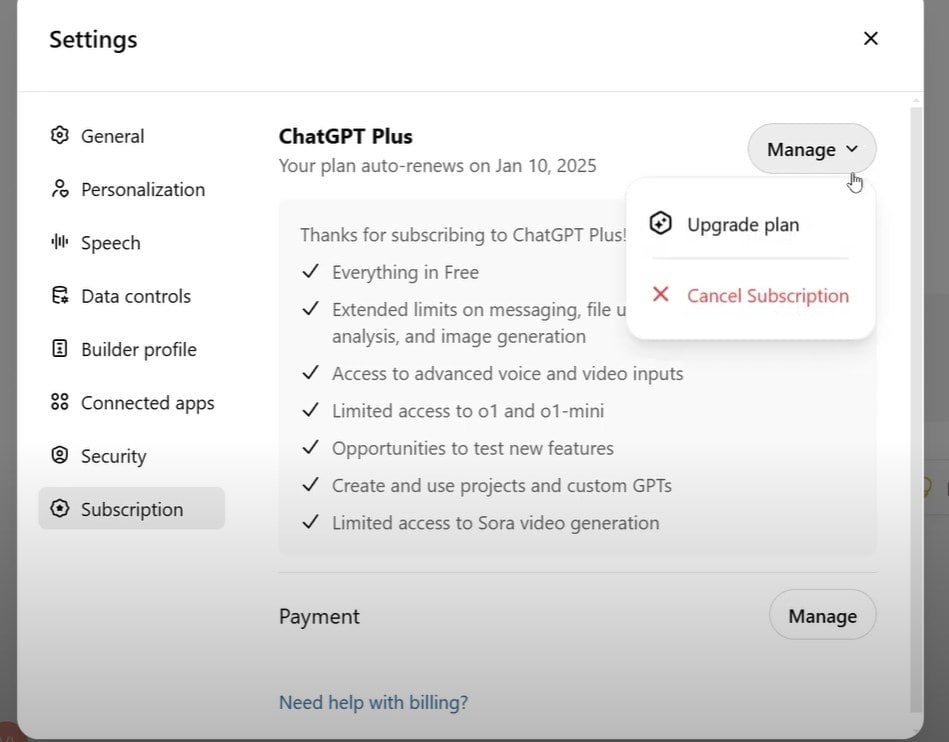
Click on the cancel button, and follow any prompts that appear to finalize the cancellation. After completing these steps, you should receive a confirmation that your subscription has been canceled.
Remember, you’ll still have access to the features until the end of your current billing period. If you change your mind, you can always re-subscribe later
Other options:
- If you want to cancel your ChatGPT Plus or Pro subscription, there are a few ways to do it. First, look for the cancel button in your account settings. If you can’t find it, don’t worry! You can head over to the Upgrade / View Plans area for help.
- Once there, you might see a message saying, “You already have this plan.” This message includes a helpful link called “Manage subscription.” Click on that link to access your subscription management options.
- Another quick way to manage your subscription is by visiting chatgpt.com/account/manage. Make sure you are signed in to your account first. This link will take you directly to the billing portal where you can cancel your plan.
Canceling ChatGPT Plus on iPhone or iPad
If you want to cancel your ChatGPT Plus subscription on your iPhone or iPad, it’s a straightforward process. You’ll be able to stop the subscription from renewing, which means you won’t be charged anymore.
Steps:
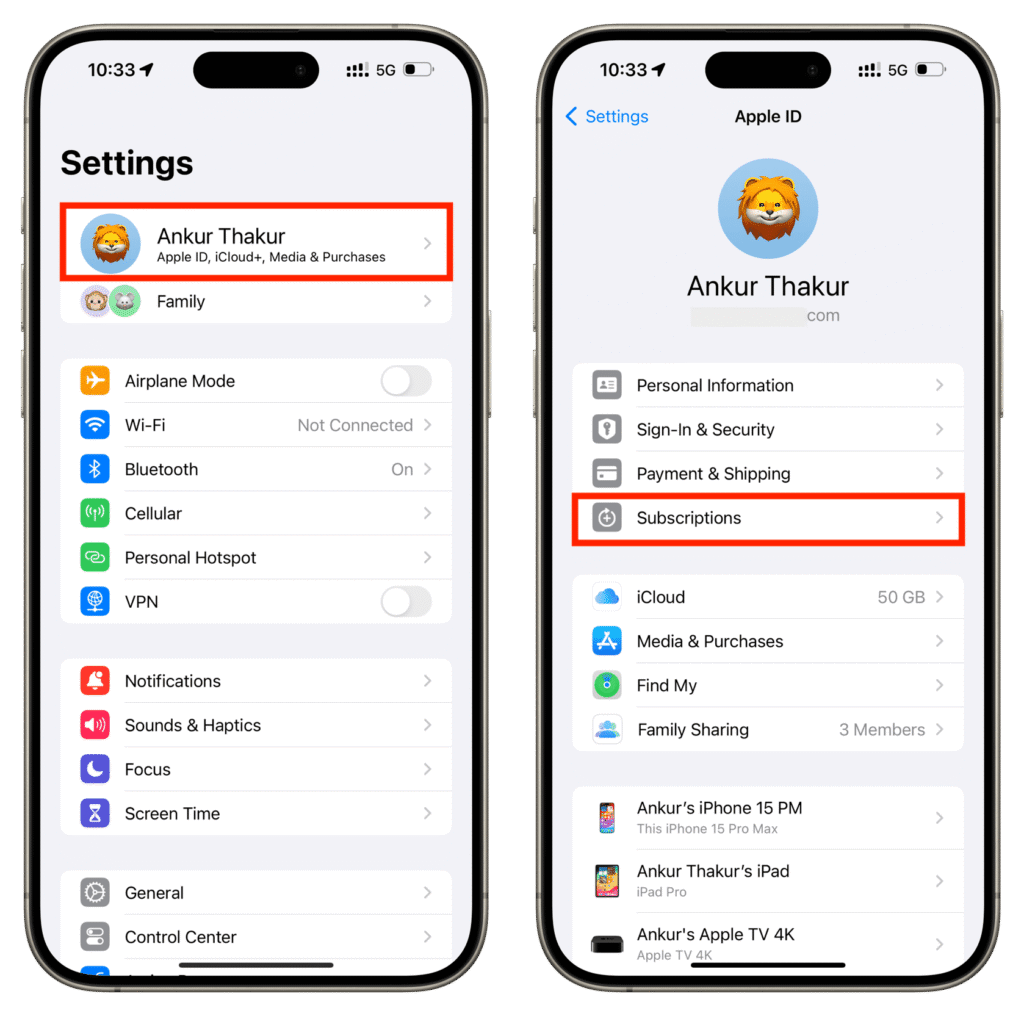
- If you want to cancel your ChatGPT Plus subscription on an iPhone or iPad, it’s easy! Start by opening the “Settings” app on your device.
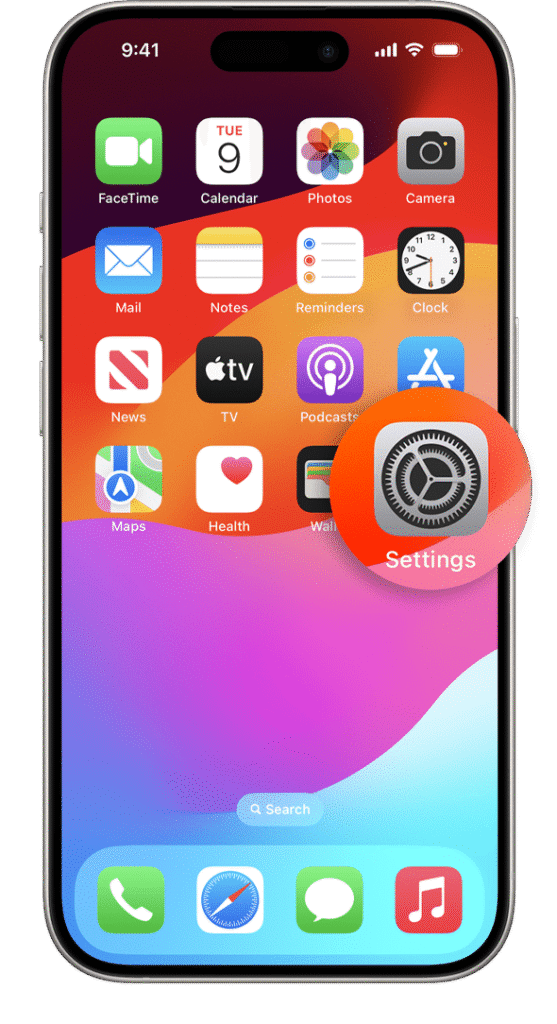
- Scroll down and tap on your name at the top of the screen. This will take you to your Apple ID settings. Next, look for “Subscriptions” and tap it to see all your active subscriptions.
- Find “ChatGPT Plus” in the list and select it. You’ll see an option to cancel the subscription. Just follow the prompts to complete the cancellation.
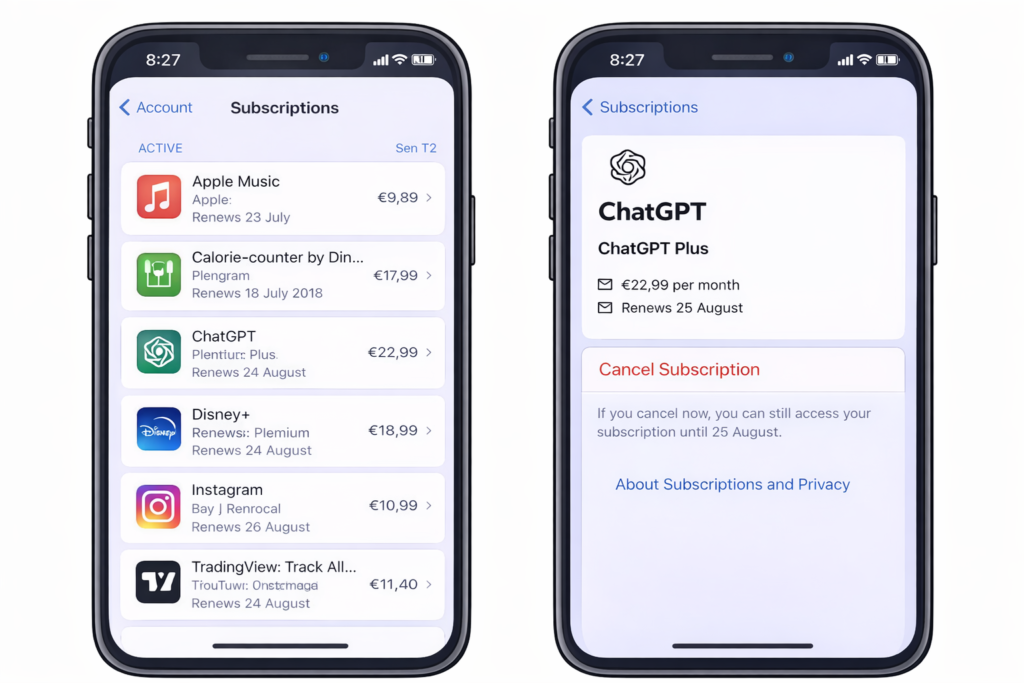
Remember, you will still have access to Plus features until the end of your billing period. After that, you’ll return to the free version. If you change your mind later, you can always resubscribe
Canceling ChatGPT Plus on Android (Google Play Store)
Steps:
- Cancelling your ChatGPT Plus subscription on an Android device is simple. First, open the app on your phone and log in to your account if you aren’t already signed in.
- Next, look for your profile icon, usually found at the top right corner of the screen. Tap on it to access your account settings.
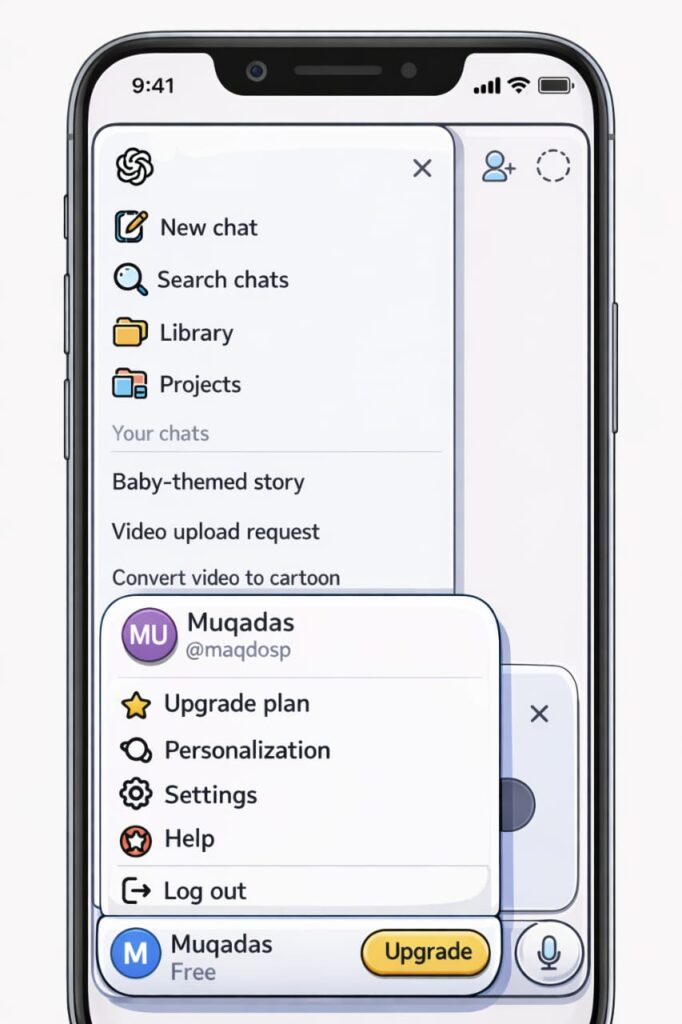
- In the settings menu, find the “Subscription” or “Manage Subscription” option. Here, you can view details about your ChatGPT Plus subscription.
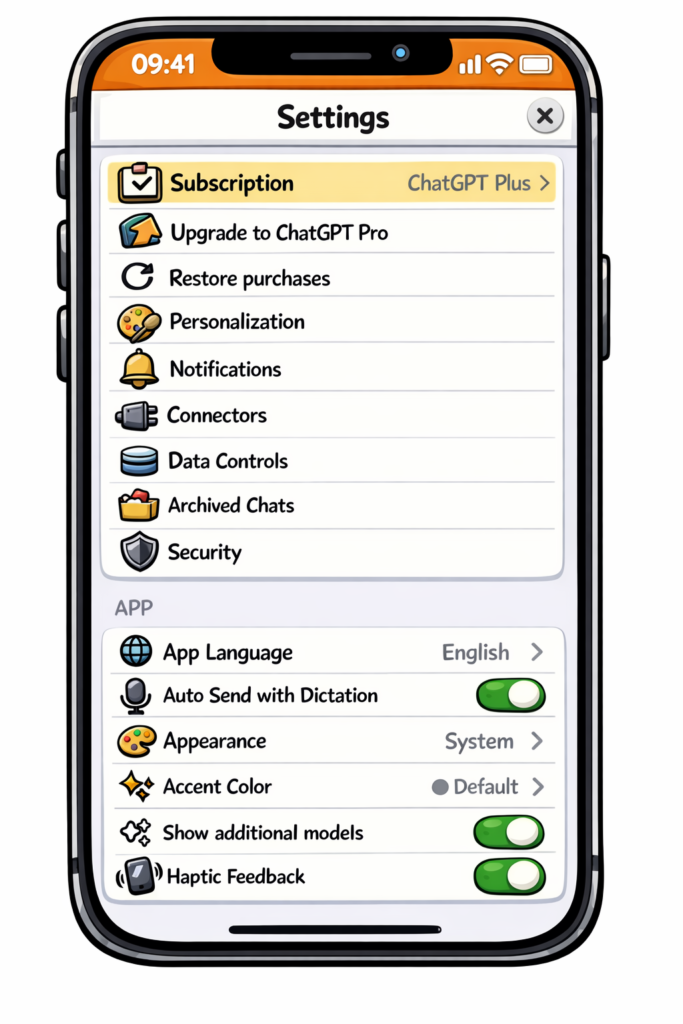
- To cancel, select the “Cancel Subscription” button. Follow any on-screen prompts to confirm your cancellation.
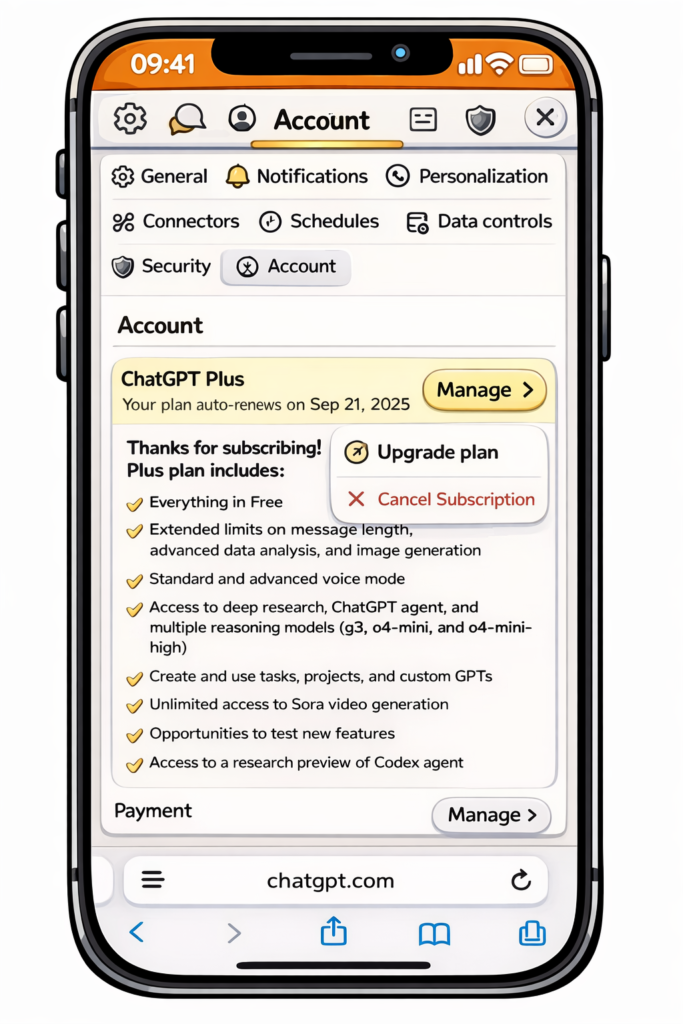
Once you cancel, your subscription will remain active until the end of your billing cycle. You can always re-subscribe in the future if you change your mind!
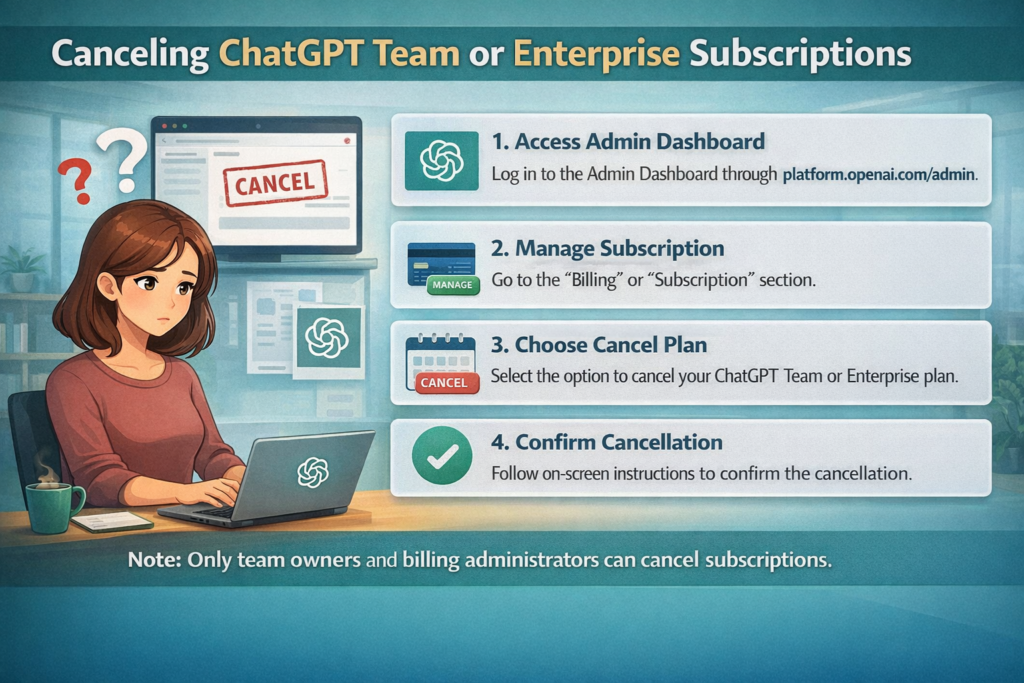
Canceling ChatGPT Team or Enterprise subscriptions.
- To cancel your ChatGPT Team or Enterprise subscription, start by logging into your account. and open the workspace switcher .Navigate to the settings or subscription management section. This area typically has options related to your plan details.
- Once you find your subscription, look for a cancellation option. Click on it and follow any prompts that appear. You might be asked for feedback on why you’re canceling, but you can choose to skip this step.
- After completing the cancellation process, you should receive a confirmation email. Keep this email for your records, as it provides proof of your cancellation. If you encounter any issues, don’t hesitate to contact customer support for help.
Remember, canceling your subscription means you will lose access to certain features and benefits. Make sure to review any important information or data before proceeding with the cancellation.
What happens after you cancel.
When you cancel your subscription to ChatGPT, several things happen. First, you will no longer be charged for the subscription after the current billing period ends. This means you can still use the service until your next payment is due.
Once your subscription is officially canceled, you will lose access to any premium features. This might include things like faster response times or advanced capabilities. However, you can still use the basic version of ChatGPT, which remains available at no cost.
It’s important to note that your account and data will remain intact. You won’t lose any chat history or personal settings. If you decide to subscribe again in the future, you can easily reactivate your subscription.
In summary, cancellation stops future charges but allows continued access until the billing cycle is complete. Your account stays the same, and you can always come back!
Related topic:
https://aicognitivezone.com/grok-vs-chatgpt/How to Check If Your Subscription Is Cancelled
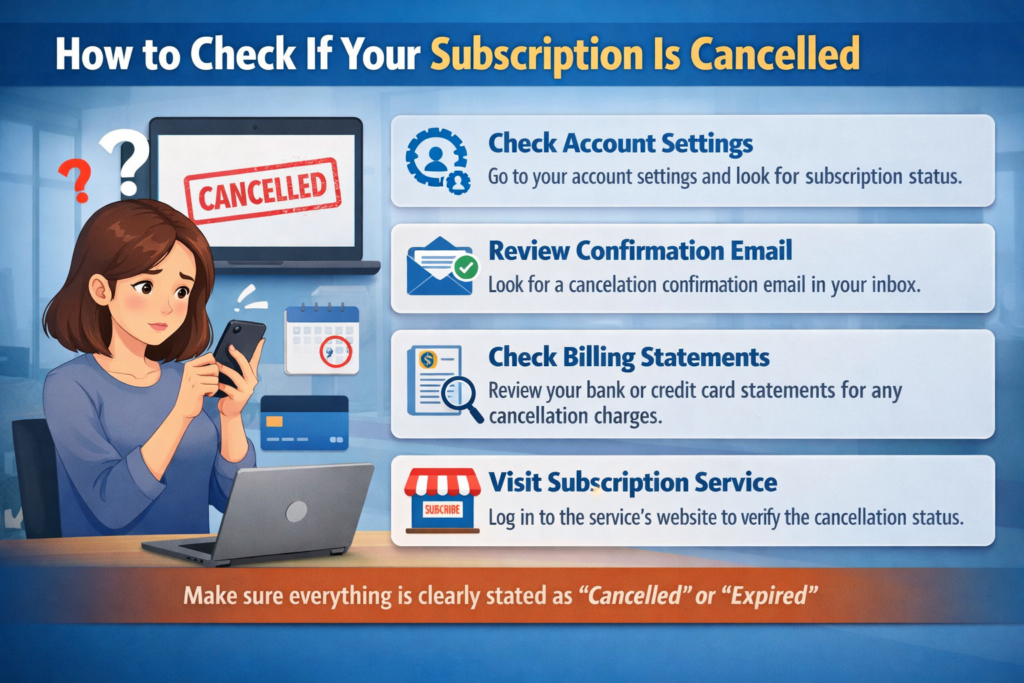
If you’re unsure whether your ChatGPT subscription is canceled, there are some easy steps you can follow.
- Log into your ChatGPT account with email and password.
- Navigate to “Account Settings” or “Subscription” in the main menu.
- Check the Subscription area for plan type and billing details.
- An active subscription shows plan type, billing date, and payment info.
- Canceled subscriptions indicate no active plan; resubscription options may be available.
- Contact customer support for assistance if needed.
Re-subscribing to ChatGPT Plus
Re-subscribing to ChatGPT Plus is a straightforward process. If you previously enjoyed the benefits of this premium service, returning is simple
- Re-subscribing to ChatGPT Plus is easy and straightforward.
- Log in to your ChatGPT account and navigate to account settings.
- Find the option to re-subscribe to ChatGPT Plus in the subscription section.
- Enter payment details and review pricing and features.
- After payment confirmation, receive a confirmation email regarding your subscription.
- Access enhanced features immediately after re-subscription.
- Benefits include faster response times and priority access during peak hours.
- Enjoy the expanded capabilities and upgraded features of ChatGPT Plus!
Troubleshooting and special cases
- If struggling to cancel, use direct management URL in a desktop browser.
- No “Cancel” button? Use the original platform or try a different browser.
- Cancellation fails? Wait and retry, or switch devices and connections.
- Can’t find the app? Make sure you’re logged into the right account.
- Lost access to email? Contact support with your old email and payment details.
- Still getting charged? Check billing period timing and for multiple accounts.
- For persistent issues, visit help.openai.com for cancellation guidance.
- Subscription lasts until the billing cycle ends; payments usually aren’t refundable.
Final Thoughts
Cancelling your ChatGPT Plus subscription is easy and only takes a few clicks. Go to your account settings to find the subscription management option. You will keep any unused credits or benefits until the end of your billing cycle. Following these steps will help you avoid extra charges later. If you have any problems, contact customer support for help. Take control of your subscriptions today!
FAQs
What do I need to cancel my subscription?
To cancel your subscription, all you need to do is log into your ChatGPT account. You can manage everything related to your subscription through the billing portal, which is straightforward and user-friendly.
Will I receive a refund if I cancel my subscription mid-billing cycle?
Generally, OpenAI’s policy states that you won’t receive a refund for any unused portion of your subscription. If you cancel, you will still enjoy your ChatGPT Plus benefits until the end of your current billing cycle.
What happens to my access to ChatGPT Plus features after I cancel?
After cancellation, you can keep using your ChatGPT Plus features — like faster response times and priority access — until your billing period ends. Once that date arrives, your account will switch back to the free tier.
Can I re-subscribe to ChatGPT Plus after canceling?
Yes, you can re-subscribe anytime. Just log back into your ChatGPT account, go to “My plan,” and follow the steps to reactivate your subscription.