
How to turn off Grammarly? AI tool review
Have you ever had a frustrating argument with your grammar checker? You’re definitely not the only one! Many people find Grammarly useful, but sometimes, you just want it to let you write freely.
Grammarly is an online AI tool to enhance writing by checking grammar, spelling, and punctuation. It suggests improvements and synonyms for better expression, making writing clearer and more engaging. Compatible with various platforms, it can be used in emails, social media, and documents, offering a convenient browser extension. Additionally, Grammarly assesses the tone of your writing, helping you convey friendliness, professionalism, or formality. Most importantly, it boosts confidence in writing skills, providing support for users.
In this article, we’ll show you how to quickly turn off Grammarly. It’s easier than you might think!
By turning it off, you can focus more on your creativity without the constant suggestions. This way, you can write what you truly feel without interruptions.
Whether you’re drafting a novel, crafting a personal email, or just jotting down your thoughts, taking control of your writing is essential.
Turning off Grammarly in the Web Browser
If you’re looking to turn off Grammarly in your web browser, the process is straightforward.
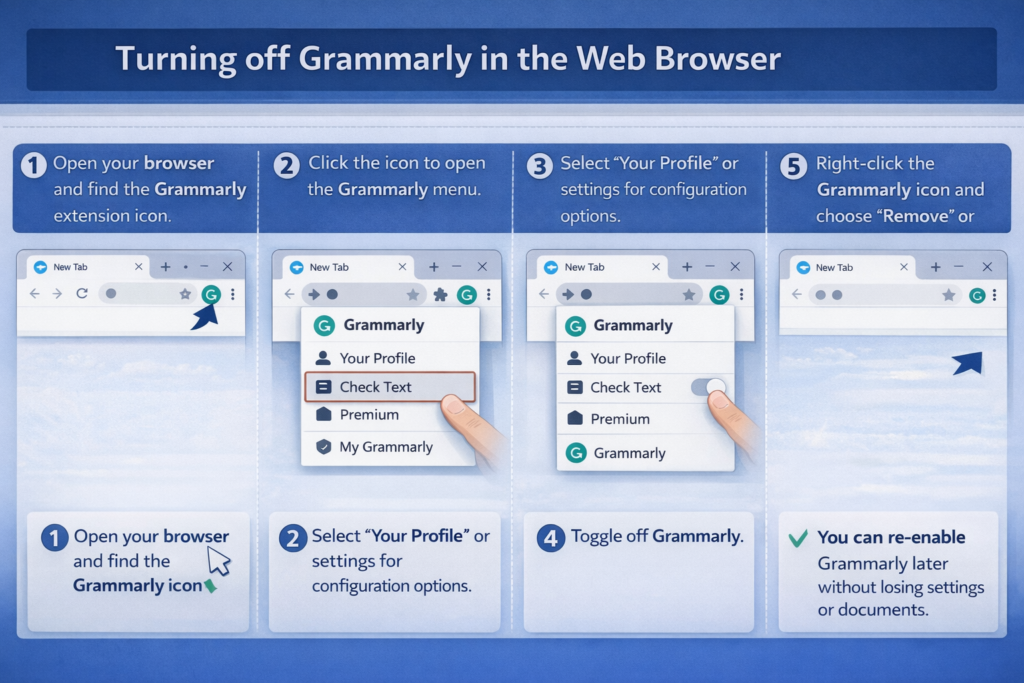
- Open your browser and find the Grammarly extension icon.
- Click the icon to open the Grammarly menu.
- Select “Your Profile” or settings for configuration options.
- Look for the option to disable Grammarly; toggle it off.
- To remove the extension, use your browser’s extension management page.
- Right-click the Grammarly icon and choose “Remove” or “Uninstall.”
- You can re-enable Grammarly later without losing settings or documents.
Disabling Grammarly on Windows or macOS
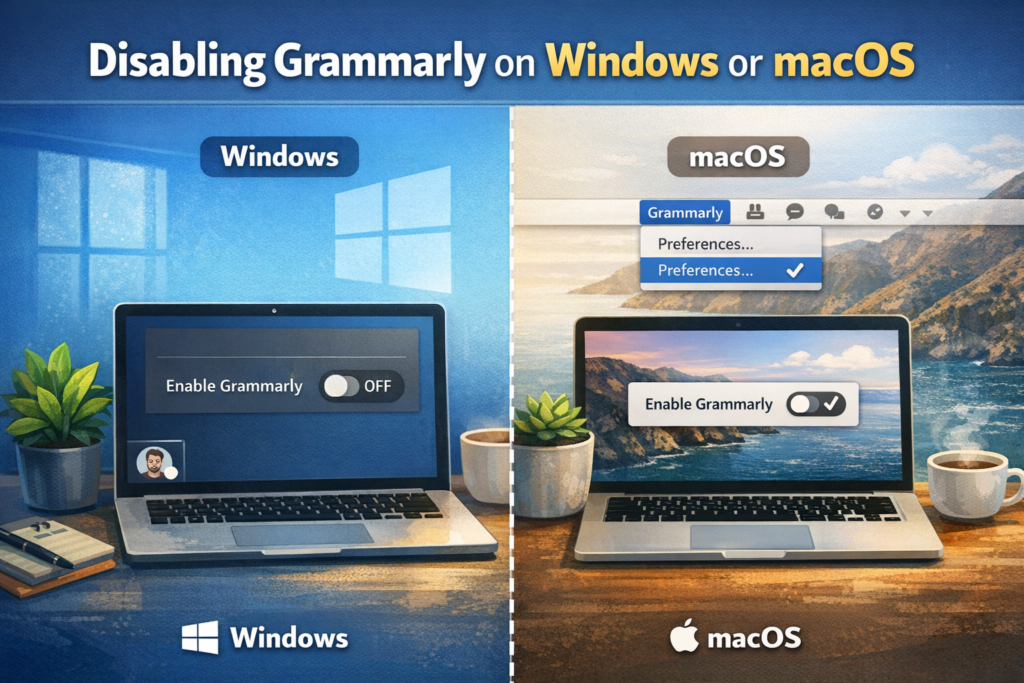
If you want to turn off Grammarly on your Windows or macOS computer, it’s pretty simple. Just follow these easy steps to ensure it doesn’t pop up anymore.
Windows Instructions:
- Open the Grammarly app.
- Click on your profile picture in the bottom left.
- Select “Settings.”
- Toggle “Enable Grammarly” off.
macOS Instructions:
- Open the Grammarly app.
- Click “Grammarly” in the menu bar.
- Go to “Preferences.”
- Toggle “Enable Grammarly” off.
If you don’t want to see the Grammarly icon in your system tray or menu bar, you can simply exit the Grammarly application. Just right-click on the Grammarly icon and choose the option to exit. This will turn off Grammarly until you decide to open it again. The good news is that you can easily turn it back on whenever you want to use its helpful writing tools again, so it’s a quick and reversible choice!
Removing Grammarly from Mobile Devices
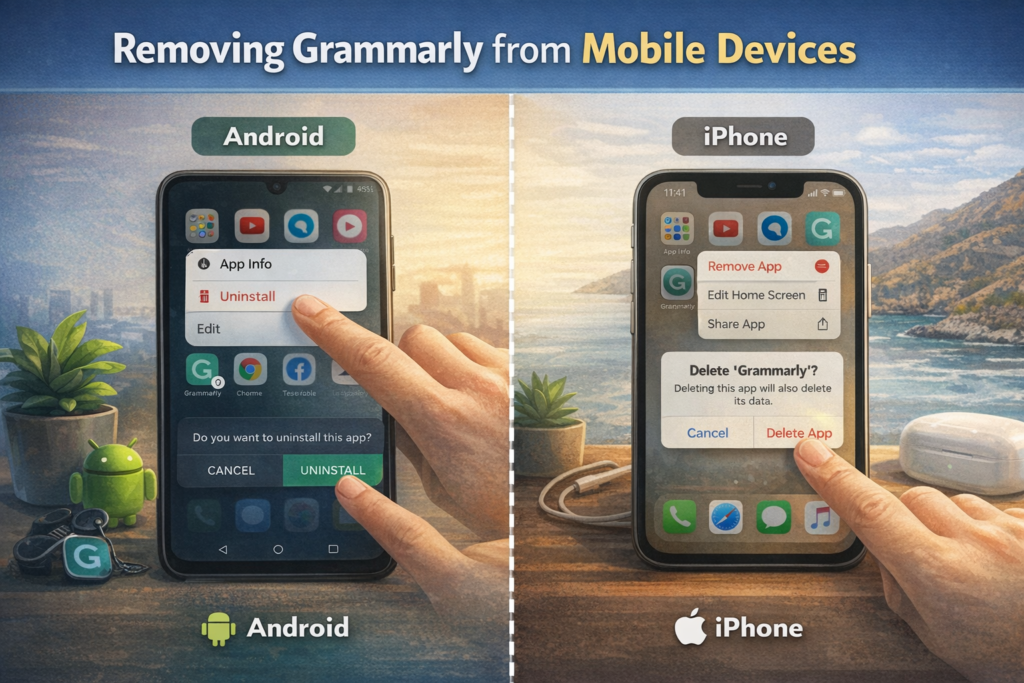
If you want to remove Grammarly from your mobile device, it’s a straightforward process. Start by locating the app on your home screen or app drawer.
- To remove Grammarly, locate the app on your device.
- Android: Tap and hold the icon, select “Uninstall,” and confirm.
- iPhone: Press the app until a menu appears, then tap “Remove App” and choose “Delete App.”
- If Grammarly is installed as a keyboard, adjust settings to disable it.
- Android: Go to Settings > System or Language & Input > keyboard settings.
- iPhone: Navigate to Settings > General > Keyboard to remove Grammarly.
- Following these steps will completely uninstall Grammarly from your device.
If you ever need to reinstall the application, you can easily do so from the app store at any time. This flexibility ensures that you don’t have to worry about losing access to the app permanently, as it will always be available for download when needed. Whether for troubleshooting issues or simply wanting to refresh your setup, the option to reinstall is a convenient solution.
Uninstalling Grammarly from Your Computer
Removing Grammarly from your computer is a straightforward and hassle-free process. The user-friendly interface ensures that even those with limited technical knowledge can easily navigate the steps required to uninstall the application.
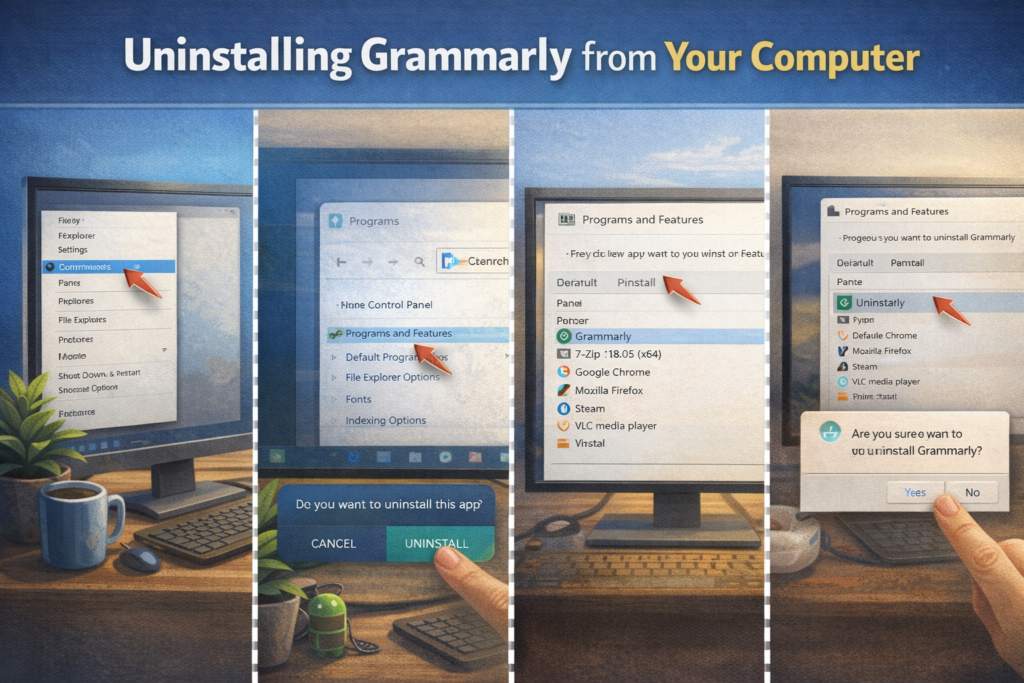
- Access Control Panel via the Start menu.
- Navigate to “Programs and Features” section.
- Locate and highlight Grammarly from the installed programs list.
- Click “Uninstall” and follow the prompts to proceed.
- Check for additional Grammarly files or browser extensions.
- Restart your computer to finalize the uninstallation.
By following these steps, you will successfully uninstall Grammarly from your computer, ensuring that all associated files and settings are completely removed. As a result, you will no longer have access to Grammarly’s writing assistance. However, if you ever decide to reinstall Grammarly in the future, you can easily do so by visiting the Grammarly website and following the installation instructions.
Conclusion
Turning off Grammarly is a straightforward process that can enhance your writing experience when you don’t need its suggestions. Whether you want to focus on your own style or avoid distractions, knowing how to disable the tool is important for every user. You can easily do this by accessing the settings within the app or browser extension. Remember, it’s all about finding the right balance between using help and expressing your unique voice. So, go ahead and give yourself the freedom to write without interruptions.
FAQs
How do I disable Grammarly in my browser?
To disable Grammarly in your browser, click on the Grammarly extension icon and toggle the switch to turn it off.
Can I turn off Grammarly for specific sites?
Yes, you can turn off Grammarly for specific sites by clicking the extension icon and selecting “Manage Account,” then adjusting the settings for in-app behavior.
Is there a way to pause Grammarly without uninstalling it?
Yes, simply click on the Grammarly extension icon and select “Pause.” This will temporarily stop its suggestions.
How do I remove Grammarly from Microsoft Word?
To remove Grammarly from Microsoft Word, go to the “Add-ins” tab, find Grammarly, and click “Remove” or “Disable.”
Can I turn off Grammarly for a single document?
Yes, you can turn it off for a single document by clicking the Grammarly icon in the bottom-right corner and selecting “Disable Grammarly for this document.”
What if I want to stop Grammarly from working in Google Docs?
To stop Grammarly in Google Docs, click on the Grammarly icon and toggle off the extension, or simply disable it in your browser settings.
Can I uninstall Grammarly completely?
Yes, you can uninstall Grammarly completely from your device’s settings or by removing it from your browser extensions.