
How To Unblock Someone on Snapchat
Snapchat is all about real-time communication, letting you send quick messages and snaps that disappear after viewing. It encourages spontaneous interactions, making it easy to connect with friends. To keep these exchanges safe and private, Snapchat has features that help manage unwanted interactions, and one of the most used is the “Block” feature.
However, there are times when you might not want to keep someone blocked. Maybe a fight has settled, or you accidentally blocked a friend while trying to remove them. Sometimes, people apologize, and relationships can mend.
Unblocking someone on Snapchat is straightforward, but many users find it tricky to locate the block list. It’s hidden deeper in the settings menu, away from the main chat screen. In this article, we’ll guide you on how to easily unblock someone on Snapchat.
Unblocking People on Snapchat
This is the heart of the tutorial, and it works the same on both iOS and Android devices.
Step 1: Open Snapchat
First, launch the Snapchat app on your smartphone. Ensure you’re logged into the account where you’ve blocked the person.
Step 2: Tap Your Profile Icon
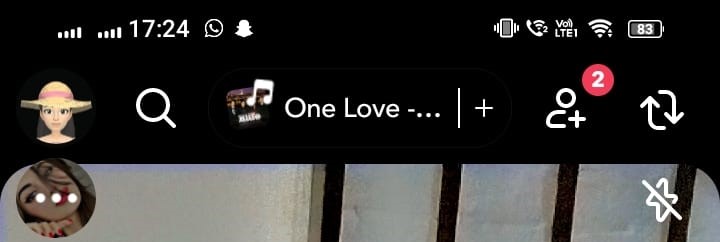
Look for your profile icon in the top-left corner of the main camera screen. This could be your Bitmoji or a default silhouette. Tap it to go to your profile page.
Step 3: Access Settings
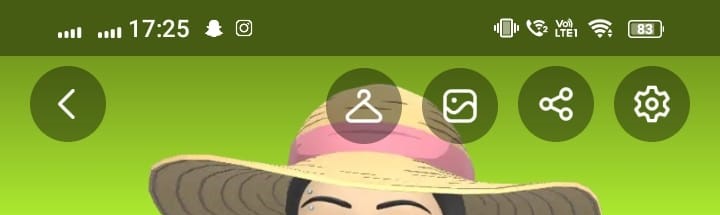
In the top-right corner of your profile page, you’ll see a gear icon ⚙️. Tap this gear icon to open the settings menu.
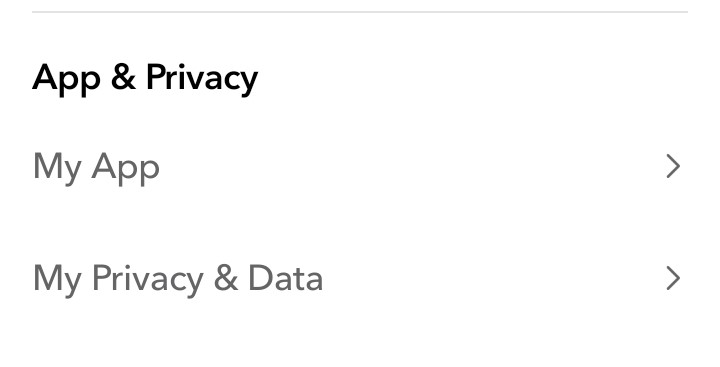
Step 4: Find Privacy Controls
Scroll down until you see “Privacy Controls.” This section contains various important settings for your account.
Step 5: Select “Blocked”
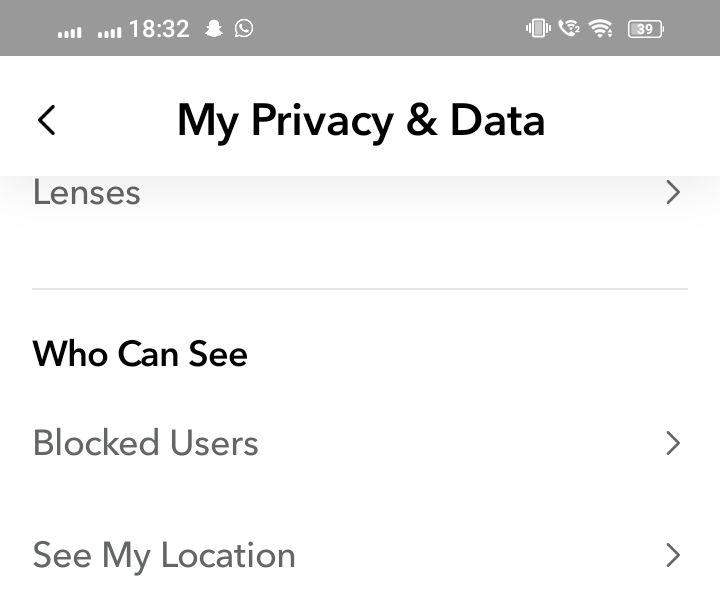
In Privacy Controls, tap on “Blocked.” This will show you a list of everyone you’ve blocked on Snapchat.
Step 6: Locate the Person
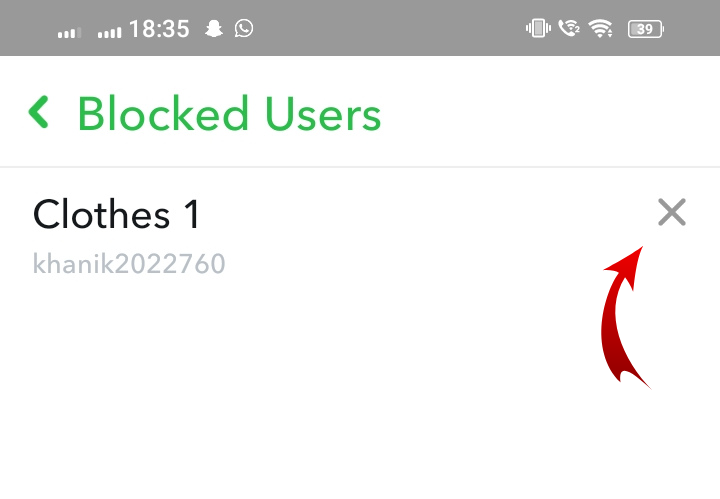
Browse through your block list to find the username of the person you want to unblock. Remember, you’ll see usernames here, not Bitmojis.
Step 7: Unblock the User
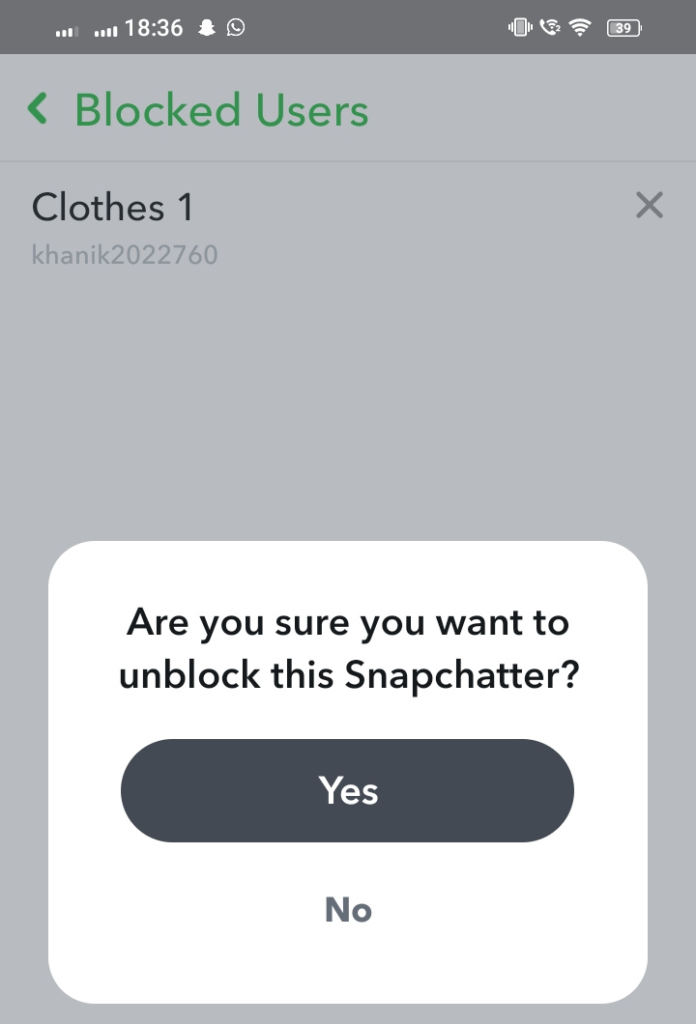
Next to their name, you’ll see an “X” or “Unblock” button. Tap on it. A popup may appear asking for confirmation. Choose Yes or Unblock to proceed.
Step 8: Confirmation of Unblocking
Once you confirm, they will be removed from your block list. They are now unblocked, but their connection to you may still need some work.
What Blocking Means on Snapchat
Blocking someone on Snapchat is a significant action that fundamentally alters your interaction with that person. It sends a clear message about your desire to sever ties, preventing them from seeing your updates or reaching out to you. This decisive step can stem from various reasons, whether it be a need for personal space, a conflict, or simply a desire to move on. The act of blocking creates a noticeable distance, not only in communication but also in the shared digital experiences that once connected you. Moreover, it can lead to complications, especially if mutual friends are involved, making it a choice that requires careful consideration.
No Contact Permitted
When you block someone, they can no longer contact you. This means they can’t send you snaps or messages, effectively severing all direct communication.
Username Search Restriction
Additionally, they can’t search for your username. This privacy feature ensures that they won’t stumble upon your profile while exploring the app.
Invisible Chat History
Your chat history with the blocked user becomes invisible. This means you won’t have access to any previous conversations, preserving your privacy.
Automatic Friend Removal
Blocking someone also means you automatically remove them as a friend. This action ensures that there are no lingering connections between you.
Restrictions on Content Visibility
Moreover, the blocked person cannot see any Memories or Spotlight content tied to your profile. Their access to your shared moments and highlights is completely revoked.
No Notifications Sent
Finally, it’s important to note that they do not receive a notification regarding the block. This allows you to avoid potential confrontations or awkward discussions about your decision.
Reasons to Unblock Someone
Unblocking someone can be a positive step for a variety of reasons. First, it allows for open communication again, which can help clear up misunderstandings or past issues. It can also lead to healing relationships that might mean a lot to you. Sometimes, time away from someone can give both parties a fresh perspective, making it easier to connect again. Additionally, unblocking someone can reduce feelings of negativity or tension you might have been holding onto. Overall, it can be a way to move forward and focus on more positive interactions.
Conflict Resolution
When disagreements happen, it’s easy to block someone and cut off communication. However, if you’ve worked through the issue and found a solution, unblocking them can be a great step towards rebuilding your relationship. It allows for open conversations again, helping both sides heal and move forward together.
Accidental Block
In today’s fast-paced digital world, it can be all too easy to accidentally block someone. Maybe it was a slip of your finger or a mix-up in your contacts. If you find out that you’ve made a mistake, don’t worry! Simply unblocking them will bring back your normal communication, allowing you to reconnect without any fuss.
Temporary Block
Sometimes, you just need a break from negativity or a little space to breathe. That’s okay! Taking a temporary block can help you recharge and feel better. When you’re ready, you can unblock that person and reconnect, making sure you feel prepared for it. It’s all about taking care of yourself!
Communication Needs
Sometimes, we find ourselves in situations at work or with family where good communication is really important. If there are misunderstandings, unblocking someone can make it easier to talk things out. By having open conversations, we can work through issues and strengthen our relationships. Just by reaching out, we can improve how we connect and interact with others.
Change in Privacy
Your privacy preferences can shift as time goes on. If you find yourself wanting to be more open with your connections, unblocking someone can be a great way to refresh those relationships. It can help you reconnect and see things from a new perspective, making interactions feel more lively and engaging.
Restore Content Visibility
If you’ve blocked someone on social media, it can stop others from seeing your posts. If you’re looking to share your content with a wider audience, it’s important to unblock that person. Unblocking can help boost your visibility and engagement, allowing more people to interact with what you share. By doing this, you’ll be able to connect with a larger community and get your message out there!
Common Issues When You Unblock Someone
When you decide to unblock someone, you might run into a few common issues.
- Difficulty locating their name in the block list, especially with many entries.
- Unable to add them back, even after unblocking.
- They can’t message you due to privacy settings.
- Their profile not appearing in searches despite unblocking.
- Receiving errors when trying to unblock, indicating potential technical issues.
Patience and seeking help may be necessary.
How To Block Someone on Snapchat
Blocking someone on Snapchat is a straightforward process that can enhance your privacy and ensure a more enjoyable experience on the platform.
Step 1: Open Snapchat
Start by launching the Snapchat app on your device. Make sure you’re logged into your account to access all features.
Step 2: Go to Your Chat Screen
Swipe right on your camera screen to navigate to the Chat screen. This is where you can see all your current conversations.
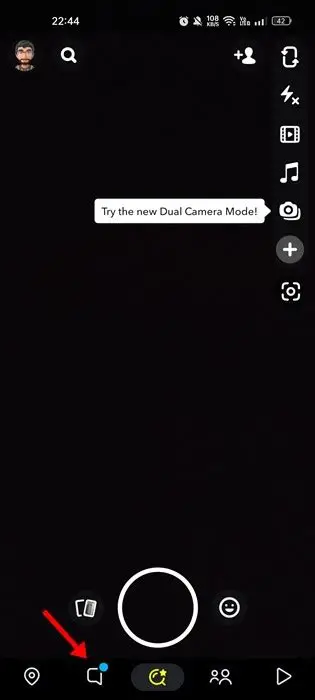
Step 3: Tap on the Person You Want to Block
Find the contact you wish to block. Tap on their name to open the chat conversation.
Step 4: Open the User’s Settings
Once you’re in the chat, look for their profile icon or Bitmoji at the top of the screen. Tap on it to access their profile settings.
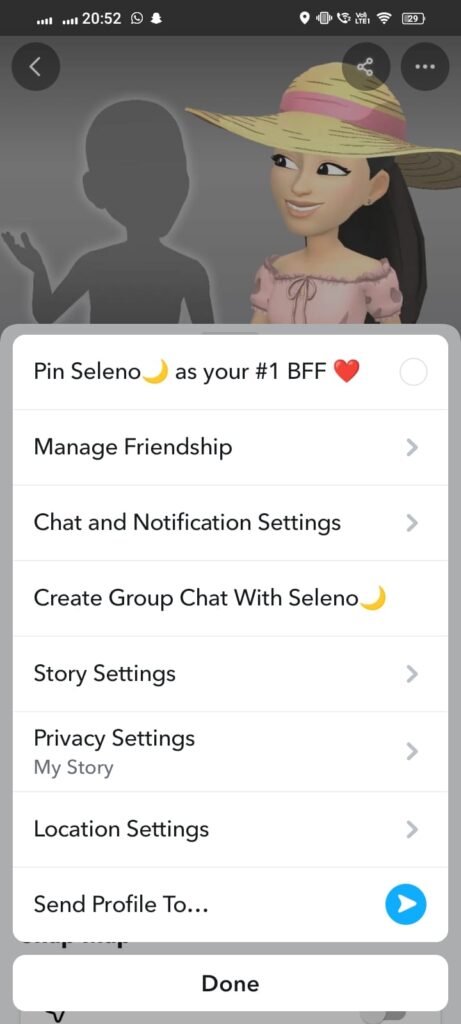
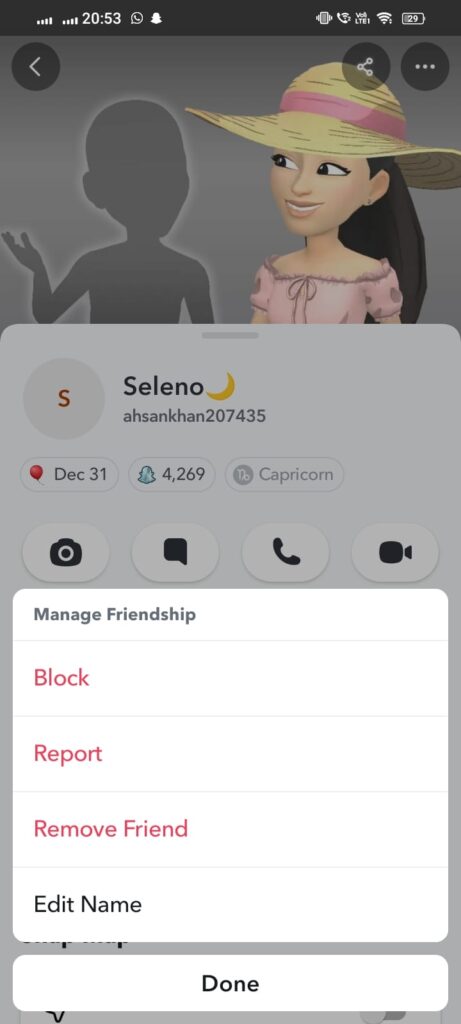
Step 5: Select “Block”
In the user settings menu, scroll down to find the “Block” option. Tap on it to initiate the blocking process.
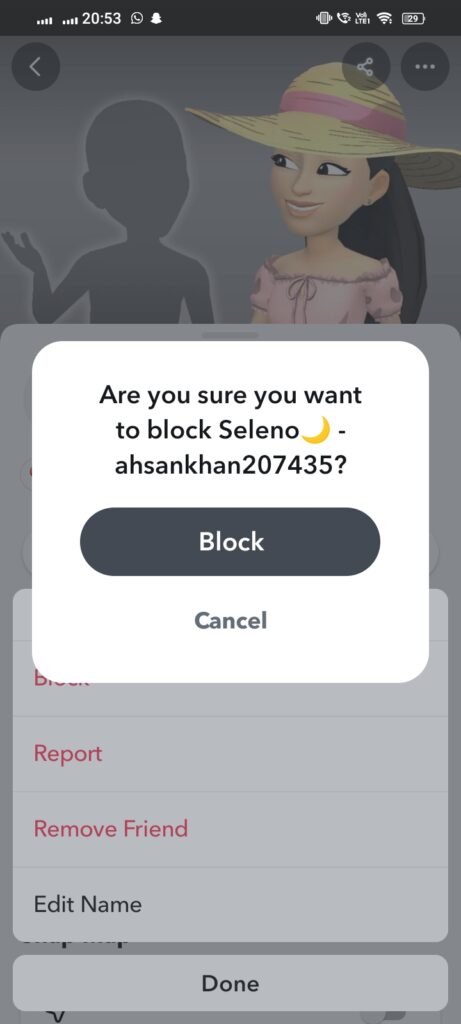
Step 6: The User Is Now Blocked
After confirming the action, the user will be blocked. They will no longer be able to send you snaps or messages, providing you with peace of mind.
By following these simple steps, you can easily manage your Snapchat interactions and protect your online space.
What Blocking Means on Snapchat
Blocking someone on Snapchat is a significant action that fundamentally alters your interaction with that person. It sends a clear message about your desire to sever ties, preventing them from seeing your updates or reaching out to you. This decisive step can stem from various reasons, whether it be a need for personal space, a conflict, or simply a desire to move on. The act of blocking creates a noticeable distance, not only in communication but also in the shared digital experiences that once connected you. Moreover, it can lead to complications, especially if mutual friends are involved, making it a choice that requires careful consideration.
No Contact Permitted
When you block someone, they can no longer contact you. This means they can’t send you snaps or messages, effectively severing all direct communication.
Username Search Restriction
Additionally, they can’t search for your username. This privacy feature ensures that they won’t stumble upon your profile while exploring the app.
Invisible Chat History
Your chat history with the blocked user becomes invisible. This means you won’t have access to any previous conversations, preserving your privacy.
Automatic Friend Removal
Blocking someone also means you automatically remove them as a friend. This action ensures that there are no lingering connections between you.
Restrictions on Content Visibility
Moreover, the blocked person cannot see any Memories or Spotlight content tied to your profile. Their access to your shared moments and highlights is completely revoked.
No Notifications Sent
Finally, it’s important to note that they do not receive a notification regarding the block. This allows you to avoid potential confrontations or awkward discussions about your decision.
How Blocking Differs from Removing or Muting
Understanding Snapchat’s privacy settings is really important. The app has different features that help you control who sees your snaps and messages. For example, you can choose who can send you messages, view your stories, and even see your location on the map. By adjusting these settings, you can make sure that only the people you trust can see what you share. Taking a little time to explore these options can help keep your experience safe and enjoyable.
Blocking in Snapchat
Blocking on Snapchat is a definitive action that cuts off all communication with a user. When you block someone, they can no longer send you snaps, chat with you, or view your stories. This creates a complete barrier, ensuring that the blocked user cannot interact with you in any way.
The Removal Process
Removing someone on Snapchat simply means that you have unfriended them. While this action stops them from seeing your private stories, they can still contact you through snaps and messages. Unlike blocking, removing creates a less severe separation; it allows for potential future reconnecting.
The Muting Option
Muting, on the other hand, offers a more subtle approach. It prevents notifications from a friend’s stories and snaps but does not sever the connection entirely. Muted users can still communicate with you, and you can choose to view their content at your own discretion.
Privacy Tips for Unwanted Contact
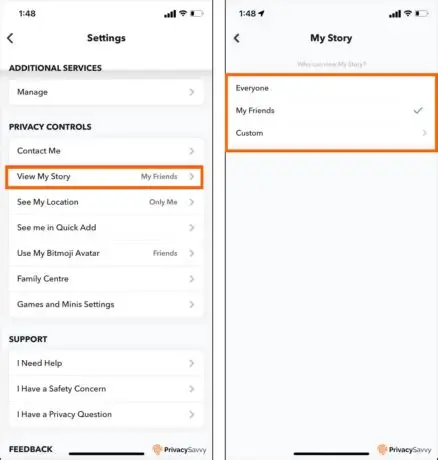
Review Your Story Visibility Settings
To tailor your online experience, consider setting your Story visibility to Friends Only. This gives you greater control over who can see your content, ensuring that only trusted connections have access.
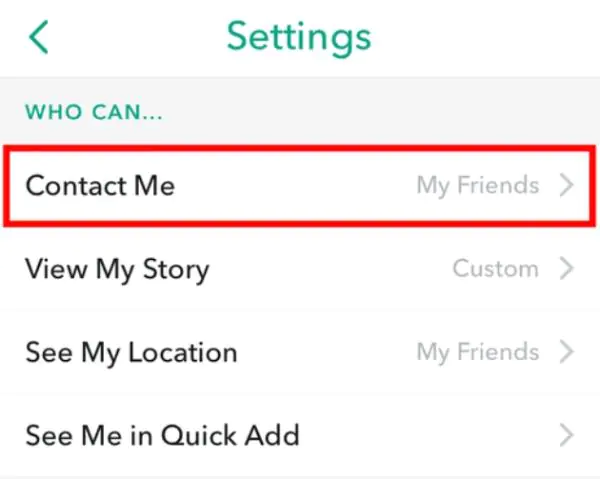
Adjust Who Can Contact You
Navigate to Settings > Privacy Controls > Contact Me. Here, you can change your settings to Friends, limiting who can reach out to you. This helps create a safer space where unwanted interactions are minimized.
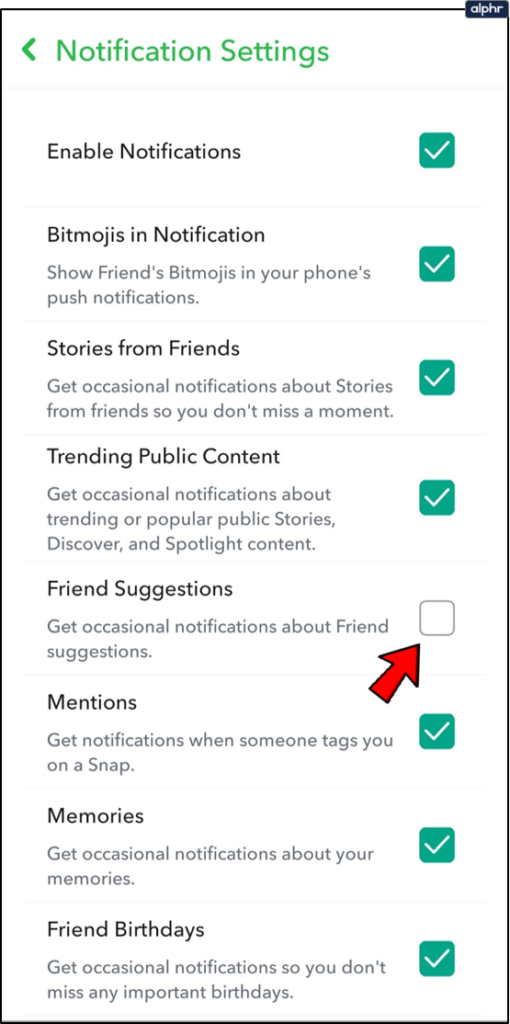
Enable “Friend Suggestions” Carefully
Be cautious with your Friend Suggestions settings. This feature affects who can discover your profile, so ensure it aligns with your privacy preferences. Limiting visibility here can protect you from unsolicited connections.
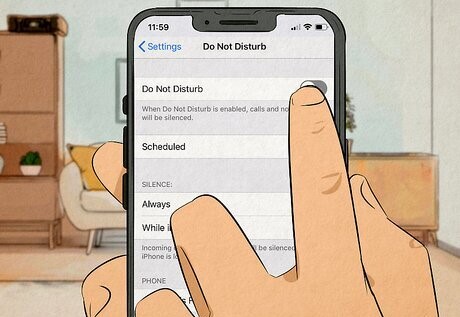
Use “Do Not Disturb” Instead of Blocking
If someone is bothersome but not harmful, consider using the Do Not Disturb feature. This will silence notifications from that user without severing the connection permanently, allowing for a more flexible approach to your interactions.
Report Harassment
If you encounter harassment, take action by reporting it rather than just blocking the offender. Reporting notifies Snapchat of harmful behavior, contributing to a safer community for all users. Your voice matters in creating a supportive environment online.